Showing posts with label successfully. Show all posts
Showing posts with label successfully. Show all posts
Friday, March 31, 2017
Successfully recover photo files from an unrecognisable Sandisk 16GB Ultra card
Successfully recover photo files from an unrecognisable Sandisk 16GB Ultra card
This is a how-to guide to help you to ecover photo files from Sandisk 16GB Ultra card that cannot be recognised by CF Card reader. So that you can easily access and recover inaccessible Sandisk Card File with easy.
"I have a Sandisk 16GB Ultra card that occasionally had the camera reporting inability to access the card. The card is similarly unrecognisable on my computer CF card reader. I think the filesystem is toast, but I suspect the photo files are still intact. I would like to find ways where I can inspect the raw binary data in the card and hopefully recover the photos?"
Which is best to recover photos from corrupted Sandisk CF Card?
TestDisk allows direct access to disk data and file recovery from corrupt partition tables. PhotoRec is specifically targeted at recovering photos by identifying byte patterns in images (& video) files. However, TestDisk/PHotoRec would not recognise a corrupt card despite it showing up on "My Computer" as a non-formatted drive.
H-Data Recovery Master did the job.
If you are looking for solution when your SanDisk CF card was formatted or reformatted mistakenly, or the CF card has some problems, cannot read, memory card error on the camera? H-Data Recovery Master is able to recover lost photos from formatted CFcard (over 85% success rate) or from corrupted CF card (over 65% success rate). What makess the CF Card Recovery software fail to recover corrupted card photos: If you have taken many new pictures on the SD card after deletion or formatting (almost fill out the memory cards space in full), or your memory card was damaged badly, or physically broken, the lost photos are usually not recoverable.
View H-Data Recovery Master on Softonic
How to recover pictures/photos from 16 GB Compact Flash (CF) card

Note: Please do note that any attempt to recover data from a drive does require knowledge of the process and further damage can occur, so if you are unsure of what you are doing then do not write any further data to the SD Card and consult someone for help.
Step 1: Connet formatted CF card to Computer
Connect the compact falsh card to your computer via the card reader or via the USB drive.
Step2: Run H-Data Android Data recovery program on windows OS (Windows 8.1/8/7/Vista/XP...)
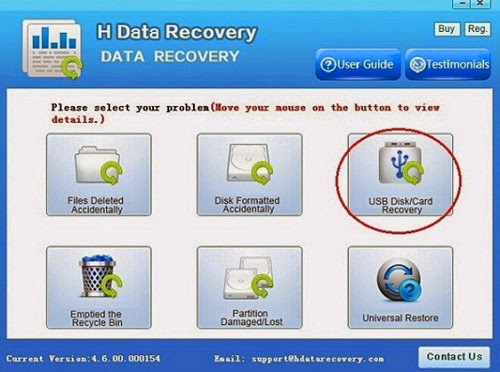
Step 3: Scan deleted files or lost data on Galaxy S6 microSD card
Select the "USB disk/Card recovery" then press "Next" to start scanning for recoverable photos, videos, and music files.
Step4: Preview and recover files stored on Galaxy SD card
After the program finish scanning all files, you can preview the files you wanted. Then mark the files you need. Click the ?Recover? button to recover deleted data on htc one.

Vist more posts:
What Is The Best Useful Compact Flash Card (CF Card) Photo Recovery
How to recover lost photos quickly from a formatted SD card
Recovery accidentally lost 3 weeks of pictures from digital camera SD card
Free H-Data Android SD Card Recovery- Detect & Recover 350+ file formats
Access and recover lost photos from SD Card with not formatted error
Available link for download

Wednesday, February 8, 2017
Successfully Get back accidentally deleted formatted file of photos
Successfully Get back accidentally deleted formatted file of photos

Restore deleted picture files from phone card or camera card
Format the SD card carelessly, accidentally delete some perfect family photos, pictures suddenly become inaccessible.... Things like this happen occasionally. Its common to loss file of pictures for corruption of memory cards utilized to click pictures in camera, non stop shooting of photos when memory card is almost full, or capturing images when digital camera is running on low battery. And mistakely deleting photos without undelete feature will really a pain to you.
If youve accidentally formatted your card or you suspect it has become corrupted, there are ways to recover your images. Dont do anything to your memory card once you realise photos have been deleted. This means, dont take any more photos on the card and remove it from the camera immediately. You will need a card reader, a computer, the memory card in question and nerves of steel, and of course the professional photo file recovery.
H-Data Photo Recovery program supports almost all flash memory card, including SD Card (Secure Digital), CF Card (Compact Flash), and SmartMedia, MemoryStick, MMC, xD Card. But please note, it does not mean every formatted memory card is recoverable. It depends on whether or not your camera has completely erased the picture data. The best and fastest way to know whether or not your lost pictures are recoverable is to download and try the evaluation version of CardRecovery.
Free Download file of photo recovery demo from softonic

Clike here to get Pro Version H-Data Recovery Master
Step1: Install the program on PC (Windows 2000/2003/XP/Vista/2008/Windows 7/Windows 8/Windows 8.1 supportted)
Step2. Connect camera card to computer. Then in Computer, check whether the smart phone shows as a drive letter (e.g. drive E: ).
If its not, take the memory card from camera and then connect the memory card to computer with a card reader, the phone card will be shown as a drive letter in Computer.

Step4. You will see a list of recoverable files when scanning complete. Select those files you want to recover and press "Recover" button to save recovered files on computer.
Read more: How to Retrieve Photos, Images, Pictures from Formatted Hard Drive
"It was too late when I found all my photos of my family and friends were in My Document and were totally deleted by myself. I regretted enormously and hated the virus when I failed to retrieve deleted photos after I tried many methods such as re-format and system restore with costing a whole day."
To retrieve deleted photos from formatted hard drive always perplex some of us, maybe we are regretted about formatting hard drive which makes our precious photos gone.
Step 1. Launch H-Data Photo Recovery. Choose the file types you want to retrieve from formatted hard drive
.
Step 2. Select the disk where you lost your data and click "Scan" button, the software will quickly scan the selected disk to find all your lost pictures. If you lost your partition, select "Partition formatted/disappear" and "Scan" to continue the recovery process. Scan the selected partition to retrieve deleted photos from formatted hard drive
Step 3. After scan, you can preview all the listed recoverable picture files one by one and select out those you want. Then, click "Recover" button to get them back once. Here you should save all the recovered files on another disk to avoid data overwriting.
View more posts to protect data and get deleted files
Recover all photo formats - Get back deleted or lost digital photos
Recovering files and folders with original file name on Windows 8.1
Amazing Android SD Card Recovery for deleted files, photos and video
Recover 350 + files and file formats with H-Data File Recovery Master
Solution to recover both folders and files deleted or emptied from Recycle Bin
Available link for download
Subscribe to:
Posts (Atom)