Showing posts with label htc. Show all posts
Showing posts with label htc. Show all posts
Saturday, April 22, 2017
Tips Android How To Take Screenshot on HTC One
Tips Android How To Take Screenshot on HTC One
Whether you are one of those who ended up being a fan of Android because HTC captivated? If yes, here is a little guide on how to take screenshots on your new phone.
HTC has 2 ways to take a screenshot: 1) version of Android (4.0 and above) and 2) his own version of HTC. For the first way is a universal way for users of Android 4.0 to the above: a combination of pressing the Power and Volume Down buttons, while the 2nd way is the HTC version that uses a combination of buttons; Power and Home button.
For the first way, you have to press both the Volume Down button and its Power simultaneously until there was a shutter sound, then release both buttons. Thumbnail of the screenshot will appear briefly on the screen, and it will pop up a new notification in the Notification Shade. You can tap the notification to view it, or access it on the album is also in the application Screenshot Gallery.

2nd way is the HTC version; You can take a screenshot by pressing the Home button Power button. This method can also be done in a number of HTC products such as the HTC One X, X HTC Desire, HTC Desire dam U. To retrieve it, simply press the Power button for a half second and then quickly press the Home button. Do not press the Power button too long because it will actually bring up the option to turn off the phone.

Difference of these two methods are both have flash animations and also shutter a different tone. 2nd way will bring the message at the bottom of the screen and does not show up in the notifications, so you can only see it in the screenshot album in the Gallery application.
Good luck!
HTC has 2 ways to take a screenshot: 1) version of Android (4.0 and above) and 2) his own version of HTC. For the first way is a universal way for users of Android 4.0 to the above: a combination of pressing the Power and Volume Down buttons, while the 2nd way is the HTC version that uses a combination of buttons; Power and Home button.
For the first way, you have to press both the Volume Down button and its Power simultaneously until there was a shutter sound, then release both buttons. Thumbnail of the screenshot will appear briefly on the screen, and it will pop up a new notification in the Notification Shade. You can tap the notification to view it, or access it on the album is also in the application Screenshot Gallery.
2nd way is the HTC version; You can take a screenshot by pressing the Home button Power button. This method can also be done in a number of HTC products such as the HTC One X, X HTC Desire, HTC Desire dam U. To retrieve it, simply press the Power button for a half second and then quickly press the Home button. Do not press the Power button too long because it will actually bring up the option to turn off the phone.
Difference of these two methods are both have flash animations and also shutter a different tone. 2nd way will bring the message at the bottom of the screen and does not show up in the notifications, so you can only see it in the screenshot album in the Gallery application.
Good luck!
Available link for download

Friday, October 7, 2016
Tutorial Root HTC One M8 Unlock Bootloader
Tutorial Root HTC One M8 Unlock Bootloader
Tutorial Root HTC One M8 + Unlock Bootloader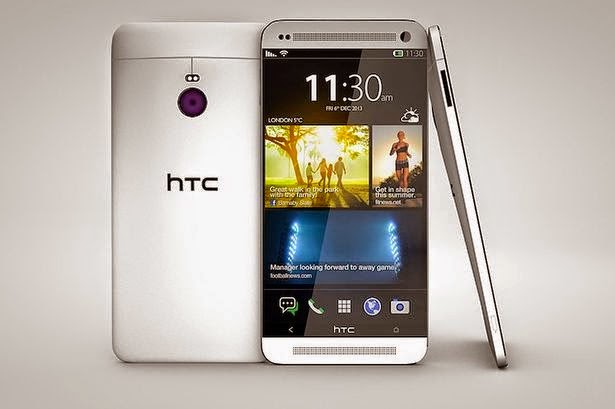
Saya kali ini Akan memberikan sebuah Tutorial tentang bagaimana root HTC One M8. Yap, Smartphone fence greget gawean HTC ini memang baru bulan lalu diluncurkan dan dijual bebas. Tentunya masih banyak Pongo pygmaeus rule masih sayang dengan HTC One M8 untuk di root. Namun, itu tidak berlaku bagi seorang opreker sejati. Bagi mereka, melakukan oprek/mod/tweak terhadap perangkat mereka, merupakan bukti kasih sayang dan kepedulian. Nah, berikut Tutorial Root HTC One M8.Tutorial Root HTC One M8 + Unlock Bootloader
Note! :Metode growth ini hanya bekerja dengan bantuan perangkat Windows, jadi hubble-bubble harus punya PC/Laptop rule memiliki OS Windows. Membutuhkan Koneksi net
Langkah-langkah:
1. Pergi ke Setting => Battery Manager => Uncek Fastboot
2. transfer Developer toolkit terbaru, klik : transfer , Simpan di Laptop/PC Windows.
3. Extract File RAR Developer Toolkit
4. Klik two kali atau buka OneM8.exe
5. Klik/Highlight transfer HTC Driver dan klik GO
6. Instal Driver dan tunggu hingga proses selesai
7. Highlight / klik Register at HTCDev dan klik GO
8. Silahkan Register di HTC Dev dengan menyertakan alamat email rule valis (Penting)
9. Pergi ke Setting (HTC One M8) => concerning => software system data => Klik Build variety twenty kali hinnga muncul tulisan "you area unit a developer"
10. Pergi ke Setting => Developer choices => Ceklist / Centang USB Debugging.
11. Setelah itu sambungkan HTC One M8 ke PC/Laptop hubble-bubble, dan Ceklist / Centang "always allow" dan klik OK.
12. Pada windows, klik/Highlight "Get Token ID" dan klik GO
13. Tutup Command Promt pertama rule muncul saat HTC One hubble-bubble memasuki Fastboot mode
14. Copy everything from and as well as <<<< symbol Token begin >>>> to <<<<< symbol Token finish >>>>> and put it aside somewhere on your pc.
15. Highlight / klik "Submit Token ID" dan klik GO
16. Log in to the HTC Dev web site once it seems so attend HTCDev.com and click on on Unlock Bootloader.
17. Pilih HTC One M8 pada menu dropdown
18. Skip saja atau klik Next hingga pada menu Token ID / Hingga Step four.
19.Paste Token ID pada Text Box rule tertera dan klik continue
20. Simpan File Unlock_Code.bin rule kalain terima melalui email ke PC/Laptop hubble-bubble.
21. Highlight / klik "Unlock Bootloader" dan klik GO
22. Pilin File Unlock_Code.bin rule sudah hubble-bubble simpan tadi dan klik OK
23. Pada HTC One M8 , Gunakan tombol Volume untuk menggerakkan kursor dan tombol power untuk memilih. Pilih YES.
24. Pergi ke Setting dan lakukan seperti langkah nomer nine dan ten.
25. Highlight TWRP two.7.0.2 pada windows.
26. Tutup Command Promt rule muncul setelah proses Selesai (Finished)
27. Reboot
28. Pada windows, di kolom Extras, klik "Perm Root" dan klik GO
29. Tutup Command Promt rule muncul setelah prosesnya selesai
30. faucet on Install in recovery mode and faucet the SuperSU.zip file.
31. Swipe untuk menginstal dan resuscitate system
32. Cek di Appdrawer, jika sudah enzyme aplikasi SuperSU, maka SELAMAT. HTC One M8 hubble-bubble sudah berhasil disini
Sekian artikel Tutorial Root HTC One M8 + Unlock Bootloader ini saya tuliskan, semoga bermanfaat dan berguna bagi hubble-bubble. Jangan lupa berkomentar dan Lihat juga artikel ini
Available link for download
Subscribe to:
Posts (Atom)