Showing posts with label time. Show all posts
Showing posts with label time. Show all posts
Thursday, March 16, 2017
Windows takes long time or ages to shut down
Windows takes long time or ages to shut down
If you have a brand new 3 - 4 months old computer which runs a lot faster and turn on very fast within few seconds but extremely slow to shut down that would be the most frustrating situation because every time you want to restart the computer after making any changes to it or lets say you have made some changes or updated any software which requires you to restart the computer thats when it becomes pain in the ass.
Here in this article we will be learning the reason why windows takes long time or ages to shut down and how to fix the slow shut down.
Issue:
Slow shut down.
Windows takes a long time to shut down.
Windows does not shut down forever.
Windows is extremely slow to shut down.
A circle in blue background keeps moving around during shut down.
Page file is the Virtual memory of your computer or you can say an extension for your memory stick-RAM that is allocated on Hard Drive of your computer.Windows OS swap pages of memory to disk when they are not used. On a running system, this pagefile is opened exclusively by the operating system, and it is well protected. However, systems that are configured to allow booting to other operating systems might have to make sure that the system pagefile is wiped clean when this system shuts down. This ensures that sensitive information from process memory that might go into the pagefile is not available to an unauthorized user who manages to directly access the pagefile.This virtual memory is maintained in a file called pagefile.sys located in root drive normally C: drive.
When this option is enabled for security reason, it causes the system pagefile to be cleared upon clean shutdown. This takes considerable time of the Operating System to flush-out the pagefile, thus causing the slow shut down.
Disable the clearing Pagefile at shut down option to increase the shut down speed.
Open regedit.exe and go to the following directory:
HKEY_LOCAL_MACHINESYSTEMCurrentControlSetControlSession ManagerMemory Management
Now, Find the registry entry named ClearPageFileAtShutdown in the right pane. If it is set to 1 it is enabled, and may delay the shut down process. Right-click it, select Modify, and change the value to 0.This will most of the time fix the slow shut down problem.
When you give command to shuts down, Windows attempts to properly close all running processes. If a service doesn?t close immediately, Windows waits for a few seconds, until it prompts the user that the service is not responding to the shutdown request. The amount of this waiting time is defined by registry keys and you can reduce it.
Please follow the steps outlined in this article, it should in no way harm your system otherwise improper editing the of registry can cause system to crash.Here are few registry hacks that you need to do.
1. Navigate to the following registry key
HKEY_CURRENT_USERControl PanelDesktop
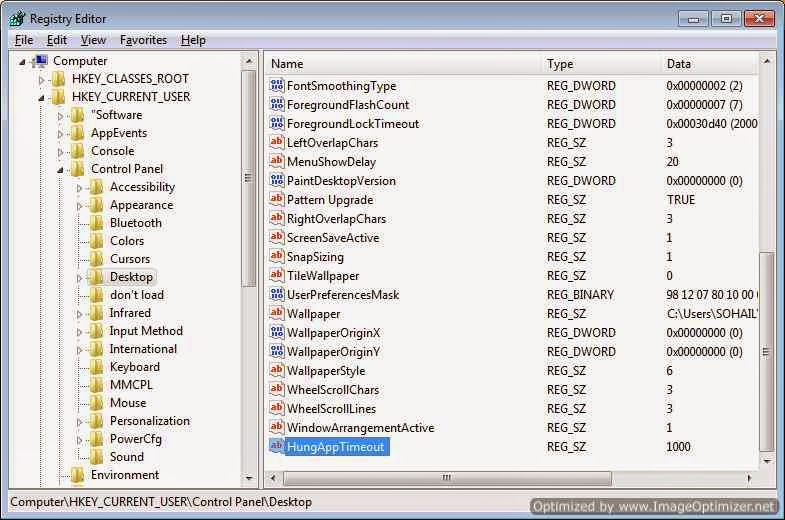
On the right, find and double-click the string > WaitToKillAppTimeout.
If this entry does not exist, you can create it. Right-click into the folder and click > New > String Value, and name it > WaitToKillAppTimeout and change its value to 1000..
if you see an entry called > AutoEndTasks, set its value data to 1.You can create one if it is not there.
Similarly change the value for HungAppTimeout registry key to 1000.
The second part of this tip changes the same settings, this time for all users on the system.
2. Navigate to HKEY_USERS.DEFAULTControl PanelDesktop
Highlight the WaitToKillAppTimeout value.
Set it to 1000 (the default should be 20000).
Now highlight the HungAppTimeout value.
Set it to 1000 also.
Highlight the AutoEndTasks value.
set it to 1.Windows will now be able to close hung applications without user input during the shutdown process.
In the third tip, we will alter a second registry setting to decrease the amount of time Windows will wait before shutting down active services after receiving a shut down command.this would help a lot to fix slow shut down problem.
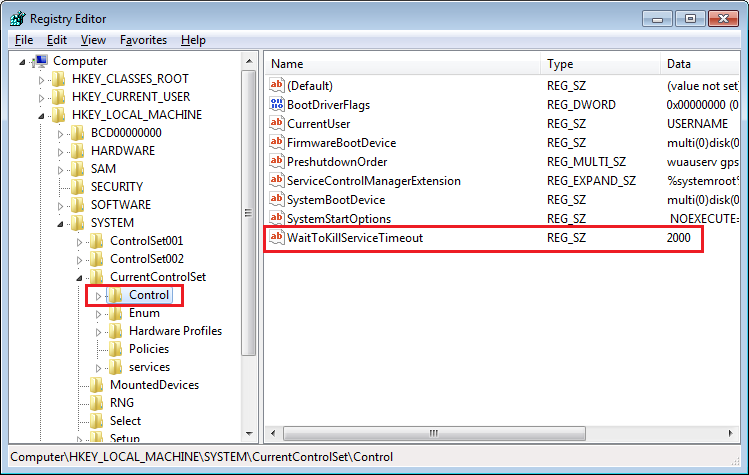
3. Navigate to HKEY_LOCAL_MACHINESystemCurrentControlSetControl
Highlight the value WaitToKillServiceTimeout
Change this value to 1000.
this registry key plays vital role in fixing slow shut down problem
After you are in command prompt type the following commands.
1) net stop wuauserv
2) cd /d %windir%SoftwareDistribution
3) rd /s DataStore
4) net start wuauserv
Your computer might have slow shut down issue because of another computer on a home network accessing the hard drive on this one, or the use of P2P file sharing like torrents or Limewire, or similar. We dont recommend using such file sharers because of the piracy aspect and risk of malware infected files.
Disconnect any share drive or network drive located on your computer before shutting down and properly stop the services of P2P file sharing programs like torrents or Limewire or similar from task manager.You should also uncheck these program from the startup items list in control panel>Adminitrative Tools > System Configuration.
Microsoft keeps releasing the updates and patches for all the windows operating system to cover up glitches or loopholes in its operating system and if you have missed out on any patch which might be directly or indirectly associated with the cause of Slow shut down then you might think of downloading the related hotfix.Below are four important hotfixes.
i.] Hotfix 1 - Download
Hotfixed is used when "There is a delay when you shut down, restart, or log off a computer that is running Windows 7 or Windows Server 2008 R2" and if you have the following symptoms.
SYMPTOMS
When you try to restart, logoff or shut down your Windows 7 or Windows Server 2008 R2.
the logoff process stops for about six seconds. Additionally, you receive the following message:
1 program still needs to close:
(Waiting for) Task Host Window
Cause: This problem occurs because the TaskHost.exe process stops handling messages during system shutdown, during system restart, and during system logoff causing slow shut down.
Important:
A hotfix is intended to correct a specific problem.
Apply the hotfix only to systems that are experiencing the specific problem.
Installing the incorrect hotfix can cause damage to your system.
Hotfixes are included in subsequent service packs that are safer to install through Microsoft Update
ii ] Hotfix 2 for Windows 2000, Windows Server 2003, Windows XP- Download
A service to help with slow shut down and unreconciled profile problems.
You may be having profile unload problems if you experience slow logoff or slow shut down (with Saving Settings for most of the time while logging off). UPHClean is a service that once and for all gets rid of problems with user profile not unloading.
The User Profile Hive Cleanup service(UPHClean) helps to ensure user sessions are completely terminated when a user logs off which causes slow shut down. System processes and applications occasionally maintain connections to registry keys in the user profile after a user logs off. In those cases the user session is prevented from completely ending. This can result in problems when using Roaming User Profiles in a server environment.
iii] Hotfix 3 for Windows XP- Download
SYMPTOMS
The shut down procedure on certain hardware configurations can take up to 15 minutes to complete.
For example, the Toshiba Satellite 5200 laptop computer that is equipped with a universal serial bus (USB) 1.1 mouse can demonstrate this problem.
CAUSE
This problem occurs because of an issue with the Microsoft Windows XP audio service which causes slow shut down.
RESOLUTION
The audio service has been updated to correct this problem.To resolve this problem, you could also obtain the latest service pack for Windows XP.
You have a computer that is running Windows 7 RTM. When the system is under heavy load, you may encounter one or more of the following problems:
The hotkey on your keyboard does not work. For example, you press the hotkey to control the brightness of your computer screen. However, the level of brightness does not change.
Windows 7 stops responding when you shut down the computer or put the computer into Sleep.
This problem frequently occurs on computers that have multiple processors or that have a processor with multiple cores.
Note: The issue is fixed in Windows 7 Service Pack 1
Sometimes when you try to shut down the computer it shows the message
Read more »
Here in this article we will be learning the reason why windows takes long time or ages to shut down and how to fix the slow shut down.
Issue:
Slow shut down.
Windows takes a long time to shut down.
Windows does not shut down forever.
Windows is extremely slow to shut down.
A circle in blue background keeps moving around during shut down.
Reason of slow shut down and troubleshooting
Shutting down windows is not as simple as turning the computer or any other electronic device off.when you give command to shut down the changes to the Operating System must be saved,System processes must end, data must be saved,unwanted information must be removed from memory and all the network connection must end.
Usually, this process takes just a few seconds, but the complex series of steps that take place behind the scenes can sometimes trip over itself and slow the shut down process.The result is a system that never actually shuts down, or takes an extremely long time to shut down.It really irritates when you have to go to some party and your machine keeps you intact due to its lazy shut down.Here are the reasons why your Windows 7 or Windows 8/8.1 PC might not shut down, and how to fix it.
1. Page File Problems causing very slow shut down
Page file is the Virtual memory of your computer or you can say an extension for your memory stick-RAM that is allocated on Hard Drive of your computer.Windows OS swap pages of memory to disk when they are not used. On a running system, this pagefile is opened exclusively by the operating system, and it is well protected. However, systems that are configured to allow booting to other operating systems might have to make sure that the system pagefile is wiped clean when this system shuts down. This ensures that sensitive information from process memory that might go into the pagefile is not available to an unauthorized user who manages to directly access the pagefile.This virtual memory is maintained in a file called pagefile.sys located in root drive normally C: drive.
When this option is enabled for security reason, it causes the system pagefile to be cleared upon clean shutdown. This takes considerable time of the Operating System to flush-out the pagefile, thus causing the slow shut down.
Disable the clearing Pagefile at shut down option to increase the shut down speed.
Open regedit.exe and go to the following directory:
HKEY_LOCAL_MACHINESYSTEMCurrentControlSetControlSession ManagerMemory Management
 |
| Slow Shut Down Cause |
Now, Find the registry entry named ClearPageFileAtShutdown in the right pane. If it is set to 1 it is enabled, and may delay the shut down process. Right-click it, select Modify, and change the value to 0.This will most of the time fix the slow shut down problem.
2. Tweak registry to reduce timeout to kill services or Apps to fix slow shut down.
When you give command to shuts down, Windows attempts to properly close all running processes. If a service doesn?t close immediately, Windows waits for a few seconds, until it prompts the user that the service is not responding to the shutdown request. The amount of this waiting time is defined by registry keys and you can reduce it.
Please follow the steps outlined in this article, it should in no way harm your system otherwise improper editing the of registry can cause system to crash.Here are few registry hacks that you need to do.
1. Navigate to the following registry key
HKEY_CURRENT_USERControl PanelDesktop
On the right, find and double-click the string > WaitToKillAppTimeout.
If this entry does not exist, you can create it. Right-click into the folder and click > New > String Value, and name it > WaitToKillAppTimeout and change its value to 1000..
if you see an entry called > AutoEndTasks, set its value data to 1.You can create one if it is not there.
 |
| Slow Shut Down Caused by Registry |
Similarly change the value for HungAppTimeout registry key to 1000.
The second part of this tip changes the same settings, this time for all users on the system.
2. Navigate to HKEY_USERS.DEFAULTControl PanelDesktop
Highlight the WaitToKillAppTimeout value.
Set it to 1000 (the default should be 20000).
Now highlight the HungAppTimeout value.
Set it to 1000 also.
Highlight the AutoEndTasks value.
set it to 1.Windows will now be able to close hung applications without user input during the shutdown process.
In the third tip, we will alter a second registry setting to decrease the amount of time Windows will wait before shutting down active services after receiving a shut down command.this would help a lot to fix slow shut down problem.
3. Navigate to HKEY_LOCAL_MACHINESystemCurrentControlSetControl
Highlight the value WaitToKillServiceTimeout
Change this value to 1000.
 |
| Slow shut down caused by registry |
this registry key plays vital role in fixing slow shut down problem
3. Windows Automatic Update Service glitch causes slow shutdown
Sometimes automatic update error also causes slow shutdown.Click on Start - run - type CMD and command prompt will appear right click on CMD.exe on top and select run as administrator. .After you are in command prompt type the following commands.
1) net stop wuauserv
2) cd /d %windir%SoftwareDistribution
3) rd /s DataStore
4) net start wuauserv
4. Network problems.
Your computer might have slow shut down issue because of another computer on a home network accessing the hard drive on this one, or the use of P2P file sharing like torrents or Limewire, or similar. We dont recommend using such file sharers because of the piracy aspect and risk of malware infected files.
Disconnect any share drive or network drive located on your computer before shutting down and properly stop the services of P2P file sharing programs like torrents or Limewire or similar from task manager.You should also uncheck these program from the startup items list in control panel>Adminitrative Tools > System Configuration.
5. Loopholes or know issue in Windows Operating System causing slow shut down
Your windows could also have slow shut down issue because of known glitch which needs to be taken care of by installing hotfix released by microsoft.Microsoft keeps releasing the updates and patches for all the windows operating system to cover up glitches or loopholes in its operating system and if you have missed out on any patch which might be directly or indirectly associated with the cause of Slow shut down then you might think of downloading the related hotfix.Below are four important hotfixes.
i.] Hotfix 1 - Download
Hotfixed is used when "There is a delay when you shut down, restart, or log off a computer that is running Windows 7 or Windows Server 2008 R2" and if you have the following symptoms.
SYMPTOMS
When you try to restart, logoff or shut down your Windows 7 or Windows Server 2008 R2.
the logoff process stops for about six seconds. Additionally, you receive the following message:
1 program still needs to close:
(Waiting for) Task Host Window
Cause: This problem occurs because the TaskHost.exe process stops handling messages during system shutdown, during system restart, and during system logoff causing slow shut down.
Important:
A hotfix is intended to correct a specific problem.
Apply the hotfix only to systems that are experiencing the specific problem.
Installing the incorrect hotfix can cause damage to your system.
Hotfixes are included in subsequent service packs that are safer to install through Microsoft Update
ii ] Hotfix 2 for Windows 2000, Windows Server 2003, Windows XP- Download
A service to help with slow shut down and unreconciled profile problems.
You may be having profile unload problems if you experience slow logoff or slow shut down (with Saving Settings for most of the time while logging off). UPHClean is a service that once and for all gets rid of problems with user profile not unloading.
The User Profile Hive Cleanup service(UPHClean) helps to ensure user sessions are completely terminated when a user logs off which causes slow shut down. System processes and applications occasionally maintain connections to registry keys in the user profile after a user logs off. In those cases the user session is prevented from completely ending. This can result in problems when using Roaming User Profiles in a server environment.
iii] Hotfix 3 for Windows XP- Download
SYMPTOMS
The shut down procedure on certain hardware configurations can take up to 15 minutes to complete.
For example, the Toshiba Satellite 5200 laptop computer that is equipped with a universal serial bus (USB) 1.1 mouse can demonstrate this problem.
CAUSE
This problem occurs because of an issue with the Microsoft Windows XP audio service which causes slow shut down.
RESOLUTION
The audio service has been updated to correct this problem.To resolve this problem, you could also obtain the latest service pack for Windows XP.
iv ] Hotfix for Windows 7- Computer could not shut down or sleep -Download
Sysmtoms
The hotkey on your keyboard does not work. For example, you press the hotkey to control the brightness of your computer screen. However, the level of brightness does not change.
Windows 7 stops responding when you shut down the computer or put the computer into Sleep.
This problem frequently occurs on computers that have multiple processors or that have a processor with multiple cores.
Note: The issue is fixed in Windows 7 Service Pack 1
6. Software or driver problems causing slow shutdown
Sometimes when you try to shut down the computer it shows the message
Available link for download

Wednesday, March 8, 2017
What is Airport Time Capsule and how to reset its password
What is Airport Time Capsule and how to reset its password
 |
| Airport Time Capsule |
Airport Time Capsule
The AirPort Time Capsule (previously known as just Time Capsule), a rectangular tube standing 6.6 inches tall and 3.85 inches wide is a wireless router sold by Apple Inc which is unique among its kind with an internal hard drive featuring network-attached storage (NAS) and a residential gateway router.Unlike some other hard-drive-equipped routers, the Time Capsule uses a SATA interface to the hard drive, versus a USB-to-SATA bridge. Apple, however, declined to disclose the rotational speed of the drive?s platters and if the drive has a SATA 6 Gbps interface or a slower SATA 3 Gbps interface.It comes with a 2 TB or 3 TB single 3.5 inches Seagate Barracuda or a Western Digitals (WD) hard drive inside. |
| Inside View of Airport Time Capsule- With Sata HDD Connection |
 | |
|
The AirPort Time Capsule was first released on February 29, 2008, with pricing announced at US$299 (œ199) for the 500 GB version and US$499 (œ329) for the 1 TB version.The first generation Time Capsule included a full AirPort Extreme Base Station with 802.11n wireless, an Ethernet WAN port, three Ethernet LAN ports, and one USB port. The USB port can be used for an external hard drive or a printer to be shared over the network, or both, by using a third-party USB hub.
In early 2009, Apple released the second generation Time Capsule. It offered simultaneous 802.11n dual-band operation, which allows older devices to use slower wireless speeds, without affecting the overall performance of devices that can use higher 802.11n speeds.The second generation model also included the addition of Guest Networking.The hard disk storage space of each model was doubled: capacities were 1 TB 2 TB, while the prices remained unchanged.
In October 2009, several news sites reported that many first generation Time Capsules were failing after 18 months,with some users alleging that this was due to a design failure in the power supplies. Apple confirmed that certain Time Capsules sold between February 2008 and June 2008 do not power on, or may unexpectedly turn off. Apple offered free repair or replacement to affected units.
The third generation Time Capsule was released in October 2009. The only change was a reconfiguration of the internal wireless antenna, resulting in an Apple-reported 50% increase in wireless performance and 25% increase in wireless range when compared to previous models.
The fourth generation Time Capsule, released in June 2011, increased the range of WiFi signals. The internal WiFi card was changed from a Marvell WiFi chip to a better-performing Broadcom BCM4331 chip.Apple again increased the storage space in each model as the hard drive sizes were increased to 2 TB and 3 TB. The 2 TB and 3 TB models were kept at the $299 and $499 price points.Amazon is giving $20 discount on 2 TB model which you could by just for $279.
The fifth generation Time Capsule was released in June 2013 alongside the sixth generation AirPort Extreme. This generation saw the name change to AirPort Time Capsule and to a taller form factor. 802.11ac support was added with this generation. The 2 TB model was kept at $299, but the 3 TB model dropped to $399.
Technical Specification of Airport Time Capsule

AirPort Time Capsule has six ports on the back:
1. One Gigabit Ethernet Wide Area Network (WAN) port
For connecting a DSL or cable modem, or for connecting to an existing Ethernet network
2. Three Gigabit Ethernet Local Area Network (LAN) ports
For connecting Ethernet devices such as printers or computers, or for connecting to an existing Ethernet network
3. One USB2.0 port
For connecting a compatible USB printer, hard disk, or hub for connecting several devices
4. Power port
For connecting AirPort Time Capsule to an AC power source
Note:- There is no power switch on Airport Time Capsule.
Size and Weight
Dimensions: 98 mm (3.85 inches) by 98 mm (3.85 inches) by 168 mm (6.6 inches)
Weight: 1.48 kg (3.26 pounds)
Compatibility
- Interoperable with 802.11a-, 802.11b-, 802.11g-, 802.11n- and 802.11ac-enabled Mac computers, iOS devices, Apple TV, Windows-based PCs and other Wi-Fi devices
- NAT, DHCP, PPPoE, VPN Passthrough (IPSec, PPTP and L2TP), DNS Proxy, IPv6 (6to4 and manual tunnels)
- Wi?Fi Protected Access? (WPA/WPA2)4
- WPA/WPA2 Enterprise4
- MAC address filtering
- NAT firewall
- 802.1X, PEAP, LEAP, TTLS, TLS, FAST
- Time-based access control
- 50
Setup and Administration
- iPhone, iPad or iPod touch with iOS 6 or later and AirPort Utility 1.3
- Mac with OS X Lion v10.7.5 or later and AirPort Utility 6.3
- Any Wi-Fi-enabled device that uses the 802.11a/b/g/n/ac specification
- USB printer
- Mac with OS X v10.2.7 or later
- PC with Windows XP (SP3), Windows Vista (SP2), Windows 7 (SP1) or Windows 8
- Mac with OS X v10.4.8 or later
- PC with Windows XP (SP3), Windows Vista (SP2), Windows 7 (SP1) or Windows 8
- Mac with OS X v10.5.7 or later
- SSID: Apple Network XXXXXX (where XXXXXX is replaced with the last six digits of the AirPort ID).
- Default Time Capsule password: public.
Inbuilt Fan for Ventilation
- It does have a fan that vents out the bottom to keep the device cool.
 |
| Fan that vents out the bottom of Apple Time Capsule |
Automatic Wireless Backup and File Sharing
Airport Time Capsule (TC) works smartly with Time Machine in OS X 10.5 Leopard or later to back up your Mac automatically and wirelessly, so you never have to worry about losing anything important again. Every photo. Every file. Every song. Even your apps and OS X settings are saved. AirPort Time Capsule stores it all ? up to 2TB or 3TB of data.Once it is setup on the network, it?s immediately available as a file server and Time Machine backup target. As a Time Machine target, it takes a snapshot of the entire system as an initial backup after which, only the files you?ve changed are backed up ? automatically, wirelessly and in the background. Since Time Machine continuously makes a copy of everything on your Mac ? and saves multiple versions ? you can easily access and restore previous versions of a single file, a folder or even your entire Mac.
As a file server it supports both AFP(Apple Filing Protocol) and SMB(Server Message Block) provides network access to files stored on the built-in hard drive. The 7.6.1 Time Capsule firmware enables remote access of the hard drive with an iCloud account. In the past, users needed a MobileMe account to remotely access data. Fourth generation models are available with 2 TB and 3 TB of built-in storage.
Note:- Time Capsule doesnt support external drives formatted using NTFS (Windows) and doesnt offer the option to format a connected external drive to the HFS+ (Mac) file system for you. In other words, to use an external drive with the Time Capsule, you first need to make sure its already formatted using HFS+ or FAT.
Accessing Files from iPhone and iPad
You can download Apps like Remote File Browser to allow iPhone and iPad access files on Airport Time Capsule . They have both a paid version and a free version. Try the free version first they may fulfill your needs of accessing some movies and songs stored on Airport Time Capsule.
Up to Three Times Faster Wi-Fi
The new Time Capsule is 802.11ac compatible with a dual-band model, capable of operating networks on both the 2.4GHz and the 5GHz frequency bands. It?s equipped with six antennas located on the top of the unit, which Apple claims helps the AirPort users connect from farther distances: three transmit/receive for its 2.4GHz radio, and three transmit/receive for its 5GHz radio.
With three-stream 802.11ac technology, the Airport Time Capsule can reach data rates of up to 1.3Gbps when used with 802.11ac-enabled clients, which is triple the 802.11n standard. 802.11ac Wi-Fi also provides double the channel bandwidth with 80MHz-wide channels providing more room for data to flow faster. If youre using an 802.11a/b/g/n Wi-Fi device, Airport Time Capsule can still optimize the connection for those Wi-Fi standards as well.
Simultaneous Dual-Band Support -Choosing the correct frequency band
No matter which band your wireless devices use, theyll automatically connect to the best available band for the fastest possible performance.
The primary difference between the 2.4 GHz and 5GHz wireless frequencies is range as the 2.4GHz frequency is able to reach farther than the 5GHz frequency.In general, the higher the frequency of a wireless signal, the shorter its range. Thus, 2.4GHz networks cover a substantially larger range than 5GHz wireless networks.When you set up your AirPort Time Capsule, it creates two high-speed Wi-Fi networks:
- A 2.4 gigahertz (GHz) network for 802.11b, 802.11g, and 802.11n devices, such as iPhone,iPod touch, and older computers
- A 5 GHz network for 802.11n, 802.11a, and 802.11ac devices, such as iPhone, iPad, Apple TV,and newer computers
Notes:
When choosing the band for your router, it is also important to consider the capabilities of your wireless clients. Many older laptops, tablets and other typical wireless devices still work only in the 2.4GHz band, while media streaming devices and newer phones have increasingly better adoption in the 5GHz band as well.802.11ac is available only on the 5GHz frequency band.
Beamforming Puts the Focus on Your Device
With 802.11ac technology comes the intelligent, powerful beamforming antenna array. Beamforming is a signal processing technique used in wireless communications, sonars and radars for directional signal transmission and reception. Beamforming is achieved by combining elements in a transmitter/antenna array in a way where signals at particular angles experience constructive interference, while others experience destructive interference. In general, the router knows where an 802.11ac device is on the network. Then AirPort Time Capsule targets its signal to that device. So your Wi?Fi signal is stronger, clearer and faster. And each of its clients exchange information as to their physical locations. They use this information to concentrate their radio energy to achieve the highest possible throughput.

The new Time Capsule offered about the same range as the previous generation, up to about 270 feet away. Its effective range, however, is within approximately 150 feet or less, which is rather standard for a dual-band router. Note that Wi-Fi range varies a great deal depending on the environment. The device also passed my 24-hour stress test, during which it didnt disconnect once.
Internet Access for your Guest
Just like other routers Time Capsule also supports guest networking, you can set up a separate Wi?Fi network just for guests.A guest network allows access only to the Internet, so your primary network - including any external hard drive, printer, or other LAN-attached device - remains secure.
Designed with Performance in Mind- Sped up .Slimmed Down.
Apple has made the new Airport Time Capsule taller and put the antennas at the top, creating a higher platform for dispersing the signal.The new vertical design not only improves Wi?Fi performance, it also saves you valuable desk space. At less than 10 centimetres square, the footprint of AirPort Time Capsule is 75 per cent smaller than its predecessor.
Get Online Safely and Securely
AirPort Time Capsule includes a built-in firewall that creates a barrier between your network and the Internet, protecting your data from malicious attacks. When you set up AirPort Time Capsule, the firewall is automatically turned on
Printer and Hard Drive Sharing
Protect your Hard Drive with a Password
AirPort Time Capsule can turn your external USB hard drive into a secure drive you can share across your Wi-Fi network and access securely over the Internet. All the documents, videos, photos, and other files instantly become available to anyone on the network, Mac and PC users alike. Its perfect
Available link for download
Friday, February 3, 2017
Surprise at lunch time in an Italian School
Surprise at lunch time in an Italian School
https://www.youtube.com/embed/JNgCM7zp30M
Available link for download
Subscribe to:
Posts (Atom)