Sunday, February 26, 2017
The BIOS does not detect or recognize the ATA SATA hard drive
The BIOS does not detect or recognize the ATA SATA hard drive
BEST GREENHOUSES FOR GROOVING VEGETABLES
? ? 1(360)241-1624 ?

? ? 360organic.us ?
DURABLE! AFFORDABLE! ALUMINUM + UV POLYCARBONATE
tips if your pc slow loading or freeze: First I will give you simple fix - usually a restart will fix it. There may be an attached device that it is having issues talking to everything else. (always kip your BIOS OS other drivers up do date) Use on-board video if you got it, unplug all hard drives, DVD and CD drives, and IDE Devices, and all other card (Video, Wifi, Ect) just with those. If it get past that great! then try adding things one at a time and see what is freezes at. Also sometimes all things need is to be pulled and re-seated. Youll be surprised how often that alone fixes boot up issues like this.
I have recently waiting for the WIN logo to get over almost 30 minutes after second restart, (just wait always wait) then I unplug Lite-on DVD/CD Rewritable drive Model LH-20A1S, AND PC boots in 20 seconds. Please note if you just reinstall your OS, you will need update drivers for the DVD drive even if you updated it before, it is all gone and fresh copy windows is missing it, it is different with Firmware, these are stay on the drive
Tips for troubleshooting SerialATA & ATA/IDE internal drive that is not detected in the system BIOS.
There are several reasons why a system BIOS will not detect the presence of an internal hard drive. Follow these steps one by one to see if any can fix this problem:
Drive is not spinning up
If the drive is not receiving power, it will not spin up. To check to see if this is the cause of the BIOS not detecting the hard drive, follow these steps:
Power off the computer. Open the computer case and remove the ATA or SATA cable from the hard drive. This will stop any power saving commands from being sent. Turn on the system. Check to see if the hard drive is spinning. If you touch the side of the drive you should feel vibration. If you do not hear or feel the hard drive acting, the drive did not start.
If you cannot determine whether the drive is spinning: , Boot the computer and listen if it is, Try to shutdown the computer, Disconnect the power cord from behind your computer, Disconnect the power cable from the hard drive, Reconnect the power cord to the back of your computer ,Power on the computer, to see if the drive sound was audible before & then repeat, but only reconnect the hard drive and listen for it sound, Switch power cables with a device like Optical drive, so that you are using a functional power cable.
Check the power supply on your computer to determine whether it is providing sufficient electrical power to operate the drives and devices you have in your computer. If the drive is still not spinning, connect it in another computer if possible. Connect the drive in a SATA-USB enclosure or something similar if possible. If the drive does not spin up after all of these steps, please visit manufacture Warranty page to begin a warranty replacement order if it is still under warranty.
Drive not enabled in the BIOS:
Most personal computers display a brief message about entering System Setup soon after the power is turned on. System Setup is also called the <<system BIOS>> or sometimes call <<CMOS Setup>> - each is a name for the same thing, for example, on HP systems you will see <<F2=Setup>> in the upper right hand corner during the computer boot-up. This means to press the F2 key so you can enter the Setup or BIOS. Different computer manufactures have different methods to enter Setup, so please check your documentation for specifics.
BIOS is where the date and time are stored and where startup preferences like NumLock or Passwords are defined. In different hard disk drives are often controlled here. Hard drives are numbered in Setup as Drive 0, Drive 1, etc. or in some cases as Primary Master or Primary Slave. Which ever way these are named, they have ON & OFF setting <<sometimes AUTOMATIC or similar>>. If your drive is not detected it may be because it is turned OFF in System Setup.
In most cases, the boot drive is Drive 0 or Primary Master. When you add a second drive to the system, it may be need to be enabled by turning it ON in System Setup.
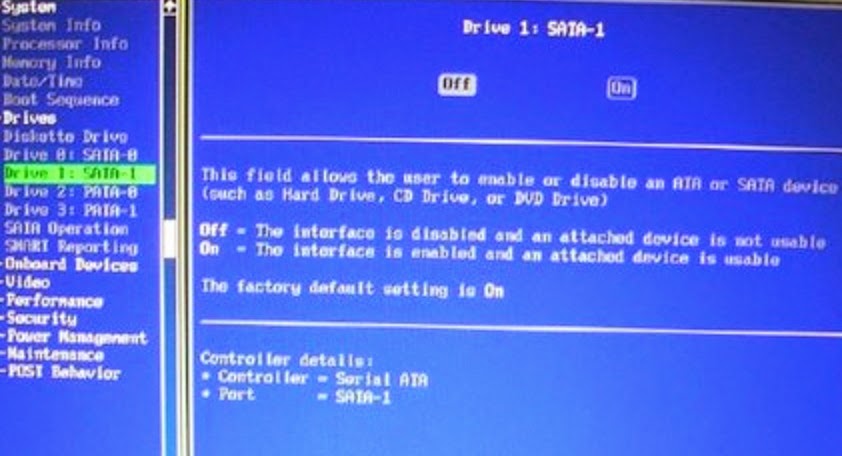 Screen shot showing System Setup section for disk drives:
Faulty or Unplugged Data Cable
Always inspect the motherboard and hard disk connections for bent or misaligned pins. Folding, crimping, pinching, or creasing data cables can cause the wires to break inside the insulation, leaving the exterior of the cable looking normal. When in doubt of data cable condition, replace it.
For SATA cables, Seagate recommends using cables shorter than 39.37 inches (1 meter). For further information, please see Document ID: 182453.
Images of Serial ATA cables. 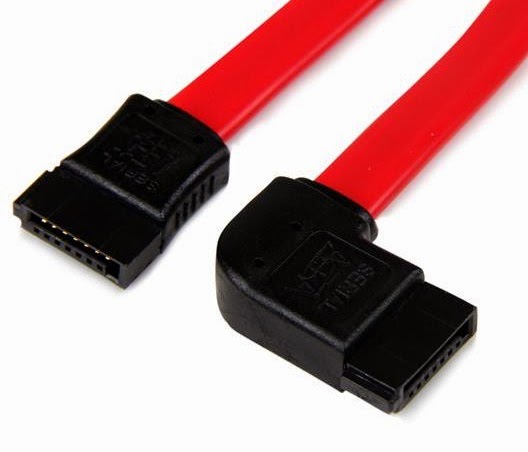
The BIOS will not detect a hard disk if the data cable is damaged or the connection is incorrect.
Serial ATA cables, can sometimes fall out of their connection. Check your SATA cables are tightly connected to the SATA port connection, sometimes you can hear click, from lock.
The easiest way to test a cable is to replace it with another cable. If you still have a problem, then the cable was not the cause.
For ATA drives, use UDMA cabling with a maximum length of 18 inches. UDMA cables have color coded connections which require proper orientation when connecting.
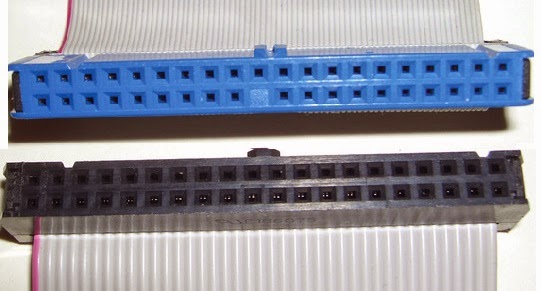 Blue connector - always connects to the motherboard.Grey (middle) connector - is used for slave devices on the cable.Black connector - is used for master device connection.
Faulty Hard Drive
If you have completed the above checks and procedures and the drive is still not properly detected, please attempt to use FreeTools to test the drive. If Tools does not detect the drive after the steps followed above, or an error code that signifies drive failure displays, please proceed to the manufacture Warranty Services page to begin a warranty replacement order.
Tips from Tomshardware website! By Paperdoc on March 16, 2012 2:37:24 AM
First, I dont expect you need to update your BIOS. A lot of people recommend "update your BIOS" whenever the mobo has trouble working with a "large" HDD because that WAS an issue for drives over 128 GB on IDE ports a while back. It has NEVER been an issue for SATA drives.
However, I do recognize that there sometimes are odd problems that can be fixed by BIOS update. If you need or want to do that without an OS installed, your manual (per the reference above from rolli59) shows you how under Section 2.1.2 on p. 2-2. It assumes you will download the latest BIOS file and place it on a USB thumb drive. Then you use a BIOS updating utility already built into your existing BIOS, following the manuals instructions.
Your manual deals with drive configuration in Sections 2.3.3 and 2.3.4 on pp 2-7 and 2-8. It does not indicate that there is any option to Enable or Disable drives, so well assume they are all Enabled. The Main screen of BIOS Setup shows the drives: if your drives are not detected and shown on this screen, you do have a problem. If you know your drives are good but all your SATA devices are Not Detected on this screen, then Id suggest you have a bad mobo.
On the other hand, Im not clear from your post that you are looking at this screen when you say, "BIOS not detecting SATA drives". If this screen does show your SATA units properly, then the BIOS HAS detected them, and you have a different problem, probably in configuration. In Section 2.3.4 you set the SATA Enhanced Mode. IF you are using Win XP in any version, you should set this to P-ATA. But assuming youre using Win7 or Vista, set this to S-ATA to get best use of your drives.
If your CD is the ONLY device on the IDE port, its jumper MUST be set to Master, and it should be plugged into the END connector on the ribbon cable. I would assume that is how it was on the old mobo, but check it.
Are you re-using your drives from before the mobo change? I would assume you are. It sounds like you are trying to Install your OS on one of them, which is a good idea. You probably cannot simply hook up your drives and expect the new mobo to boot from that - at least, not without some work to fix driver problems.
Assuming you are trying to Install to a previously-used HDD, the Install Process may tell you it cannot find any empty drive to Install to. That is NOT because the BIOS is failing to detect. It is because the drives are all "full" - that is, their entire space is assigned to existing Partitions. To do the Install of the OS, you need either to use its tools to Delete all existing Partitions on the ONE HDD youre installing to, or at least to tell it to use one specific Partition (large enough for the job) to Install to. IF you Install to any existing Partition, be aware it will wipe that entire Partition clean and you will lose all its old data.
Thank you Tomshardware website please visit them here!
Durable Greenhouses made from Polycarbonate UV Protected material and Aluminum

ALSO PLEASE VISIT THIS VIDEOS AND SEE IF YOU FIND SOMETHING NEED:
Windows Registry Tools can be downloaded here:
How to kip your PC Private by deleting DATA Permanently
http://askpctech.blogspot.com/2016/03/kip-your-pc-privat.html
This tutorial is made up on request several users, is well is fallowing video:
1)How to Delete Paint Recent Pictures from List in Windows 7
2)Win 7? Fix for ?Safely Remove Hardware and Eject Media? not working How To
3)Windows 10 How to Fix Black Screen After Booting
4)How To Remove Windows 10 Upgrade Notification On Windows 7 And Windows 8
5)How to Delete Face book Page Permanently - 2015
6)How to Uninstall Windows 10 and Downgrade to Windows 7 or 8.1
7)detected: not-a-virus:remoteadmin.win32
8)How to change pictures into icons for folders
9)Speed up your PC Disable System Restore on SSD
10)Speed up your PC Disable Scheduled De-fragmentation SSD
11)2015 Black screen of DEATH Windows 7 & 8 - with cursor at start-up SOLVED
12)Upon start up only wallpaper shows FIX
13)Here is video on Windows 7 & 8 - Black screen with cursor at start-up FIX
You can also open Task Manager by pressing Ctrl+Shift+Esc.
14) I bought a windows 7 PC but it Look alike old PC FIX:
15) Windows 7 & 8 - Black screen with cursor at start-up FIX:
16) How To Fix Minecraft OpenGL Error Windows 7 xp vista 720p :
17) removing bars using regscanner regedit & file shredder 720p:
18) How to Recover windows Explorer from error 2014 720p
19) HOW TO Save on battery online
20) Windows 7 & 8 - Black screen with cursor at start-up FIX
Upon start up only wallpaper shows no icons
CTL+ALT+DEL then click file and new task. then type explorer.exe and press ok
Best Greenhouse system 2015
Available link for download

Webcam Bostontek 280X280
Webcam Bostontek 280X280
Here you can download webcam bostontek 280x280.
Informations:
File name: WebcamBostontek280X280.zip
Version: 1.3.1
Size: 1.98 MB
OS: Windows 7 and 8
File is safe, uploaded from tested source.
Available link for download
Windows8 1 Activator 100 Working
Windows8 1 Activator 100 Working
Windows8.1 All version Activator 100% working


Instructions: 1.disable your antivirus
2.disable your internet conection
3.Run activator as administrator
4.select your version click on activate
after few minutes pc will be restarted
enjoy you are done...
.gif)
.gif)
Available link for download
Store Blu ray DVD to NAS for Playback via Apple TV 4 PS3
Store Blu ray DVD to NAS for Playback via Apple TV 4 PS3
NAS is the extender for home sharing. You can share and watch files from NAS on multiple computers, TV, iPad, iPhone, Android phone, or other devices. If you wanna ripping mainly blu-rays so they are not destroyed in the handling. But also use it to rip older DVD formatted movies. Or want to copy Blu-ray/DVD collection to NAS for streaming with your Apple TV 4 and PS3? This article will shows you with an easy workaround for copying Blu-ray/DVD to NAS for streaming by ripping Blu-ray/DVD to NAS friendly video format for Apple TV 4 and PS3 on Windows and Mac.

To be sure, most of you know how to rip Blu-ray and DVDs, and have been doing so just fine. The problem you face is how to rip Blu-ray/DVD to a NAS proper format with best settings for NAS streaming while maintaining the highest quality possible. As far as we know, MP4, MKV are commonly supported formats for Apple TV 4, PS3 etc via streaming videos from NAS. Thus, what you need is a professional Blu-ray ripping tool that supports converting Blu-ray to MP4/MKV for NAS streaming with the best quality.
There are many, many Blu-ray/DVD ripping tools on the market. I?ve tired a pile of them. Pavtube BDMagic is the best one I?ve tried yet. It is capable of ripping Blu-ray/DVD to MP4, AVI, MKV for NAS streaming on Apple TV 4/PS3 with no quality loss; it also enables you to copy Blu-ray/DVD main movies for backup onto NAS in .m2ts format. Read the review.
Besides, What I?ve learned is that MKV would fit for your Apple TV 4/PS3, and MP4 would be one best target format for it is fully compatible with nearly all media devices including iPad, iPhone, PS4, Apple TV, etc. If you are running on Mac OS X El Capitan, turn to BDMagic for Mac. If you haven?t got the software, download it now and let?s start the conversion.
Ripping and copying Blu-ray/DVD to NAS for watching on Apple TV 4/PS3
Free Download and trail:


Other Download:
- Pavtube old official address: http://www.pavtube.cn/blu-ray-ripper/
- Cnet Download: http://download.cnet.com/Pavtube-BDMagic/3000-7970_4-75922877.html
Good News! To thanks for your continuous support, Pavtube Official Website and Pavtube Facebook all has been released its 2015 Christmas Day Deal. Pavtube BDMagic is available with 30% off is provided on christmas week, Don?t miss it! Pay less to get powerful Blu-ray/DVD Ripper/Copier to build your own home media center on your becoming Christmas!
1. Launch the Blu-ray/DVD ripping program for NAS devices . Then click ?Load Blu-ray/DVD? to import the Blu-ray/DVD files you want to convert. To select the subtitles you like, simply click Subtitle and select the one you prefer. P.S. Before start the conversion, you can choose to backup Blu-ray/DVD main movies.

2.Click Format bar and choose your desired format. To store hundreds of Blu-ray/DVD?s on NAS, you can rip Blu-ray/DVD to .mp4, or .avi, .mkv, etc compressed format. Here for watching on Apple TV 4/PS3, MKV or MP4 format is suitable.

Tip: And click Settings bar, you can adjust the level of compression to suit the quality you want. Keep in mind the file size and video quality is based more on bitrate than resolution which means bitrate higher results in big file size, and lower visible quality loss, and vice versa.

3. Press the ?Convert? button to start ripping Blu-ray/DVD for NAS streaming.
After the conversion, click Open button to find the output files. Make sure the wireless network connection is accessible among the NAS and Apple TV 4/PS3 or other media players. Then just enjoy the high quality Blu-ray/DVD movies with your family anytime you like.
Learn>> Stream Any Videos to Apple TV 4 for Playable format | Stream all media files from a PC to PS3 console
Read More:
To be sure, most of you know how to rip Blu-ray and DVDs, and have been doing so just fine. The problem you face is how to rip Blu-ray/DVD to a NAS proper format with best settings for NAS streaming while maintaining the highest quality possible. As far as we know, MP4, MKV are commonly supported formats for Apple TV 4, PS3 etc via streaming videos from NAS. Thus, what you need is a professional Blu-ray ripping tool that supports converting Blu-ray to MP4/MKV for NAS streaming with the best quality.
There are many, many Blu-ray/DVD ripping tools on the market. I?ve tired a pile of them. Pavtube BDMagic is the best one I?ve tried yet. It is capable of ripping Blu-ray/DVD to MP4, AVI, MKV for NAS streaming on Apple TV 4/PS3 with no quality loss; it also enables you to copy Blu-ray/DVD main movies for backup onto NAS in .m2ts format. Read the review.
Besides, What I?ve learned is that MKV would fit for your Apple TV 4/PS3, and MP4 would be one best target format for it is fully compatible with nearly all media devices including iPad, iPhone, PS4, Apple TV, etc. If you are running on Mac OS X El Capitan, turn to BDMagic for Mac. If you haven?t got the software, download it now and let?s start the conversion.
Ripping and copying Blu-ray/DVD to NAS for watching on Apple TV 4/PS3
Free Download and trail:
Other Download:
- Pavtube old official address: http://www.pavtube.cn/blu-ray-ripper/
- Cnet Download: http://download.cnet.com/Pavtube-BDMagic/3000-7970_4-75922877.html
Good News! To thanks for your continuous support, Pavtube Official Website and Pavtube Facebook all has been released its 2015 Christmas Day Deal. Pavtube BDMagic is available with 30% off is provided on christmas week, Don?t miss it! Pay less to get powerful Blu-ray/DVD Ripper/Copier to build your own home media center on your becoming Christmas!
1. Launch the Blu-ray/DVD ripping program for NAS devices . Then click ?Load Blu-ray/DVD? to import the Blu-ray/DVD files you want to convert. To select the subtitles you like, simply click Subtitle and select the one you prefer. P.S. Before start the conversion, you can choose to backup Blu-ray/DVD main movies.
2.Click Format bar and choose your desired format. To store hundreds of Blu-ray/DVD?s on NAS, you can rip Blu-ray/DVD to .mp4, or .avi, .mkv, etc compressed format. Here for watching on Apple TV 4/PS3, MKV or MP4 format is suitable.
- You can also put your Blu-ray/DVD onto portable hard drives, PC and external Hard Drive.
Tip: And click Settings bar, you can adjust the level of compression to suit the quality you want. Keep in mind the file size and video quality is based more on bitrate than resolution which means bitrate higher results in big file size, and lower visible quality loss, and vice versa.
3. Press the ?Convert? button to start ripping Blu-ray/DVD for NAS streaming.
After the conversion, click Open button to find the output files. Make sure the wireless network connection is accessible among the NAS and Apple TV 4/PS3 or other media players. Then just enjoy the high quality Blu-ray/DVD movies with your family anytime you like.
Learn>> Stream Any Videos to Apple TV 4 for Playable format | Stream all media files from a PC to PS3 console
Read More:
- Convert MP4 movie for playback on Playstation 3 successfully
- Stream videos from my DSLR on NAS to PS3 for playback
- 4K Videos to Roku 4- Play All 4K files on Roku 4 with MKV/MP4 format
- Solved - Cant play MKV-files with Plex on Apple TV 4
- 3D Blu-ray to ATV 4 - Stream 3D Blu-ray to Apple TV 4
Available link for download
Veeam Backup Replication 8 0 Update 3 Released
Veeam Backup Replication 8 0 Update 3 Released
Here they are full release notes and download link (you must register)
http://www.veeam.com/kb2068
To install this update you need to stop "Veeam Backup Service", install update, start "Veeam Backup Service". When you launch Veeam B&R for first time you will be prompted to update Veeam client and any other veeam server repository/Proxy.
Solution
New Features and Enhancements
Microsoft
Microsoft
- Support for Windows 10 as guest virtual machines (VMs), including application-aware processing.
- Support for installation of Veeam Backup & Replication and all of its components on Windows 10.
VMware
- Support for vSphere 6.0 Update 1.
- Added ability to convert "VMware Tools not found" job warning to informational event. To enable this behavior, set DisableVMwareToolsNotFoundWarning (REG_DWORD) registry value to 1.
Linux
- Support for the following additional SSH ciphers: aes128-ctr, aes192-ctr, aes256-ctr, aes192-cbc and aes256-cbc.
Veeam Explorer for Microsoft SQL Server
- Log truncation is automatically skipped for stopped and unsupported SQL Server instances to prevent errors from being logged.
- Preferred network settings will now also apply to transaction log backup jobs.
- Support for SQL Servers using non-standard port number.
Veeam Explorer for SharePoint
- Support for ADFS authentication.
- Support for UPN credentials.
SureBackup
- Proxy appliance will now respond to ping from within Virtual Lab to prevent firewalls automatically blocking its network as public.
Other
- Removed weakly encrypted username and password logging from guest processing components using networkless (VIX) guest interaction mode. Veeam thanks Pasquale Fiorillo and Francesco Ongaro of ISGroup for vulnerability discovery.
- Improved performance of certain user interface operations, such as opening Backups node in large environments.
- Reduced load on SQL Server hosting product configuration database, while improving SQL interaction reliability in large environments.
- Improved performance of configuration backup in large environments.
- Minor enhancements and bug fixes in various product areas.
Available link for download
Subscribe to:
Posts (Atom)