Wednesday, February 22, 2017
Virus Cryptlocker and Ramsoware mitigation actions
Virus Cryptlocker and Ramsoware mitigation actions
From this article I proceed to highlight main activities to mitigate Cryptlocker.
More details on original italian article.
http://www.devadmin.it/2016/02/15/crypto-ransomware-mitigations/
Considering that this kind of virus can not be solved with normal AV definition here they are some mitigation approaches:
1. Using a product like Sophos UTM (Unified threat management)
2. Proceed to block these files extension going over extension itself but analyzing file header too (this task should be done from antispam provider/tools)
- Applications Files: *.exe, *.lnk, *.pif, *.dll, *.ocx, *.sys, *.scr, *.msi, *.msp, *.gadget, *.application, *.com, *.hta, *.html, *.htm, *.jar, *.cpl, *.msc, *.hlp
- File VBScript e JavaScript: *.vb, *.vbs, *.vbe, *.js, *.jse
- File script Monhad (rinominato poi in ProwerShell): *.msh, *.msh1, *.msh2, *.mshxml, *.msh1xml, *.msh2xml
- File script PowerShell: *.ps1, *.ps1xml, *.ps2, *.ps2xml, *.psc1, *.psc2
- File script DOS: *.bat, *.cmd
- File Windows Script: *.ws, *.wsf, *.wsc, *.wsh
- File di collegamento e configurazione: *.lnk, *.pif, *.sfc, *.inf, *.reg
- *.zip, *.rar, *.7z.
Blocked attachments in Outlook
KB829982 You may receive an ?Outlook blocked access to the following potentially unsafe attachments? message in Outlook
You can utilize this article to create suitable GPO to prevent this kind of problem:
http://www.mcbsys.com/blog/2013/10/block-user-folder-executables/

- AccessChk,
- AccessEnum:
- ShareEnum:
- Netwrix Effective Permissions Reporting Tool. (free tool)
Auditing File Access on File Servers
[udate 2016.05.16]
Very intersting Microsoft Article.
I am highlighting more important sections:
https://blogs.technet.microsoft.com/mmpc/2016/05/18/the-5ws-and-1h-of-ransomware/
How can you avoid and bounce from a ransomware attack?
Prevention
- Keep your Windows Operating System and antivirus up-to-date. Upgrade to Windows 10.
- Regularly back-up your files in an external hard-drive.
- Enable file history or system protection. In your Windows 10 or Windows 8.1 devices, you must have your file history enabled and you have to setup a drive for file history.
- Use OneDrive for Consumer or for Business.
- Beware of phishing emails, spams, and clicking malicious attachment.
- Use Microsoft Edge to get SmartScreen protection. It will prevent you from browsing sites that are known to be hosting exploits, and protect you from socially-engineered attacks such as phishing and malware downloads.
- Disable the loading of macros in your Office programs.
- Disable your Remote Desktop feature whenever possible.
- Use two factor authentication.
- Use a safe and password-protected internet connection.
- Avoid browsing web sites that are known for being malware breeding grounds (illegal download sites, porn sites, etc.).
Detection
- Install, use, and regularly update an antivirus solution like Windows Defender to detect ransomware.
- Enable Microsoft Active Protection Service (MAPS) to get the latest cloud-based ransomware detection and blocking.
Recovery
- Make sure you have backed-up your files.
- Recover the files in your device. If you have previously turned File History on in Windows 10 and Windows 8.1 devices or System Protection in Windows 7 and Windows Vista devices, you can (in some cases) recover your local files and folders.
To restore your files or folders in Windows 10 and Windows 8.1:
- Swipe in from the right edge of the screen, tap Search (or if you?re using a mouse, point to the upper-right corner of the screen, move the mouse pointer down, and then click Search). Enter ?restore your files? in the search box, and then tap or click Restore your files with File History.
- Enter the name of file you?re looking for in the search box, or use the left and right arrows to browse through different versions of your folders and files.
- Select what you want to restore to its original location, and then tap or click the Restore button. If you want to restore your files onto a different location than the original, press and hold, or right-click the Restore button, tap or click Restore To, and then choose a new location.
To restore your files in Windows 7 and Windows Vista
- Right-click the file or folder, and then click Restore previous versions. You?ll see a list of available previous versions of the file or folder. The list will include files saved on a backup (if you?re using Windows Backup to back up your files) as well as restore points. Note: To restore a previous version of a file or folder that?s included in a library, right-click the file or folder in the location where it?s saved, rather than in the library. For example, to restore a previous version of a picture that?s included in the Pictures library but is stored in the My Pictures folder, right-click the My Pictures folder, and then click Restore previous versions. For more information about libraries, see Include folders in a library.
- Before restoring a previous version of a file or folder, select the previous version, and then click Open to view it to make sure it?s the version you want. Note: You can?t open or copy previous versions of files that were created by Windows Backup, but you can restore them.
- To restore a previous version, select the previous version, and then click Restore.
- Find lost or missing files in OneDrive
- Delete or restore files and folders
Restoring the files using the Portal
Site Collection Restore service request
Link (.lnk) to Ransom
https://blogs.technet.microsoft.com/mmpc/2016/05/26/link-lnk-to-ransom/
Limited Periodic Scanning in Windows 10 to Provide Additional Malware Protection
https://blogs.technet.microsoft.com/mmpc/2016/05/26/limited-periodic-scanning-in-windows-10-to-provide-additional-malware-protection/
Available link for download

Tuesday, December 20, 2016
Tech Support Pop up Virus Removal Guide
Tech Support Pop up Virus Removal Guide
I am sure you know as well as I do that these days, using the internet is quite a dangerous activity! And you dont even have to be using the Dark Web to fall foul of the myriad of software programs that have been designed to do us harm. Being infected by malware can be a distressing experience ? and it can cost you dearly in time and money, and even your identity.
There are programs that will hijack your browsers, display scam tech support pop ups and fake BSOD screens, those that trick you into handing over money for fix of your supposedly detected computer errors or malware infections, others that steal your passwords and hack your email, social media and even bank accounts. And because the majority of these malicious programs are bundled with free software, files or apps, we are all at risk of contracting an infection every single time we download something.
A fake message from securepcnow.com claiming that your data is at risk because of detected security errors:

Another fake pop-up message from errorscript.co trying to convince you that your computer is infected with malware. It even tries to mimic Microsoft Security Essentials detection window to make it look more reliable:

And finally, the most popular scam pop-up these days - fake BSOD claiming that your system security is at risk:

Even computer or tech support pop ups, which are often seen as less of a menace than some of the other types of software, can cause you harm and seriously disrupt the way you use your computer. Such pop-ups are usually displayed by adware installed on your computer. So, if you are getting fake tech support pop-ups then you should scan your computer for adware and other malware. But is adware the same as spyware? After all they are both often discussed in the same breath so you could be forgiven for thinking that they are one and the same. Lets take a look at the similarities between the two.
What do adware and spyware have to do with each other?
Adware has one defining trait that is very much its own: its ability to show you an endless stream of annoying and fake tech support pop-up windows and banner adverts. Spyware does not do this but it does have an even more sinister trick up its sleeve ? read on to find out what.
The reason that adware and spyware are often lumbered together in articles about malware is that adware does have some spy-like characteristics. When adware is installing itself on your PC it also installs a tracing component that monitors your internet usage and tracks and records which websites you visit. It then sends this data back to the adware?s programmer who can then show you adverts that are closely related to the goods or services that you have been looking at online.
Spyware on the other hand will not only survey which websites you visit ? it takes its creepy and intrusive antics one step ? a big step ? further. Spyware often installs something called a keylogger on your machine and this will monitor which keys you type. This data is collected and then sent to the programmer or owner of the spyware so that they can discover ? and of course then use - your passwords, login details, online bank account details, credit card numbers and anything else they care to discover about you.
Protecting yourself from adware and fake tech support pop-ups
After reading the above you probably want to learn how to protect yourself. Well, much as we all love to download the plethora of free apps and software that are available out there, to protect yourself you need to download with care. And that means reading Ts & Cs carefully when youre downloading to ensure youre not also installing any nasty add-ons. If your computer has been infected by adware which displays tech support scam pop-ups saying that you need to call certain phone number for assistance - DONT and instead please follow the steps in the removal guide below. If you call the number you will probably lose at least $100 and compromise your computer security. If you have questions, please leave a comment down below. Good luck and be safe online!
Written by Michael Kaur, http://deletemalware.blogspot.com
Tech Support Pop-up Virus Removal Guide:
1. First of all, download anti-malware software and run a full system scan. It will detect and remove this infection from your computer. You may then follow the manual removal instructions below to remove the leftover traces of this malware. Hopefully you wont have to do that.

2. Remove adware related programs from your computer using the Uninstall a program control panel (Windows 7). Go to the Start Menu. Select Control Panel ? Uninstall a Program.
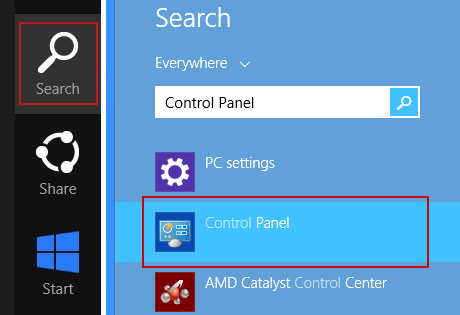
If you are using Windows 8 or 10, simply drag your mouse pointer to the right edge of the screen, select Search from the list and search for "control panel".
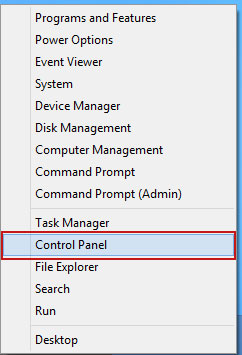
Or you can right-click on a bottom left hot corner (formerly known as the Start button) and select Control panel from there.
3. When the Add/Remove Programs or the Uninstall a Program screen is displayed, scroll through the list of currently installed programs and remove the following:
- Magical Find
- GoSave
- Extag
- SaveNewaAppz
- and any other recently installed application
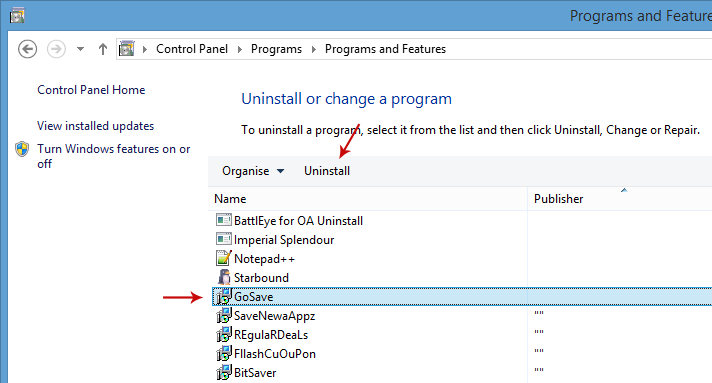
Simply select each application and click Remove. If you are using Windows Vista, Windows 7 or Windows 8, click Uninstall up near the top of that window. When youre done, please close the Control Panel screen.
Remove Tech support pop-up ads related extensions from Google Chrome:
1. Click on Chrome menu button. Go to More Tools ? Extensions.

2. Click on the trashcan icon to remove Magical Find, Extag, Gosave, HD-Plus 3.5 and other extensions that you do not recognize.
If the removal option is grayed out then read how to remove extensions installed by enterprise policy.

3. Then select Settings. Scroll down the page and click Show advanced settings.

4. Find the Reset browser settings section and click Reset browser settings button.

5. In the dialog that appears, click Reset. Thats it!
Remove Tech support pop-up ads related extensions from Mozilla Firefox:
1. Open Mozilla Firefox. Go to Tools Menu ? Add-ons.

2. Select Extensions. Click Remove button to remove Magical Find, Extag, Gosave, MediaPlayerV1, HD-Plus 3.5 and other extensions that you do not recognize.
Remove Tech support pop-up ads related add-ons from Internet Explorer:
1. Open Internet Explorer. Go to Tools ? Manage Add-ons. If you have the latest version, simply click on the Settings button.

2. Select Toolbars and Extensions. Click Remove/Disable button to remove the browser add-ons listed above.
Available link for download
Tuesday, October 11, 2016
Troubleshooter of Error AVG anti virus reports WebsteroidsService exe as malware
Troubleshooter of Error AVG anti virus reports WebsteroidsService exe as malware
AVG anti virus reports WebsteroidsService.exe as malware
Original title: WebsteroidsService.exeÿmalware
ÿAVG anti virusÿreports this threat several times daily despiteÿapparently removing it.
Free Spyhunter identifies it but when I try to remove program manually I get message saying it cannot be removed while file open.
Any ideas?
Anwsers to the Problem AVG anti virus reports WebsteroidsService.exe as malware
Download Error Fixer for Free Now
Note: It is recommended that you back up your files and folders before attempting this step:
- Move the mouse cursor over to the upper right side of the screen.
- A menu will pop up on the left. Click on the "Settings" feature on the menu.
- On the Settings window, click on the "Change PC settings."
- Now, left click on the "Update and recovery" feature.
- For the next step, left click on the "Recovery" feature.
- There is an option here saying "Refresh your PC without affecting your files." There, left click on the "Get started" button.
- Now, follow the instructions on the screen to finish the Refresh process.
- After the Refresh process has finished restart your Windows 8.1 or Windows 8 device.
- Check again to see if the error AVG anti virus reports WebsteroidsService.exe as malware has been fixed.
If you do not possess the technical expertise required to accomplish this yourself or do not feel comfortable doing so, download and install a powerful automated tool to get the job done.
Another Safe way to Fix the Problem: AVG anti virus reports WebsteroidsService.exe as malware:


How to Fix AVG anti virus reports WebsteroidsService.exe as malware with SmartPCFixer?
1. Download SmartPCFixer. Install it on your system.

2. After the scan is done, you can see the errors and problems which need to be fixed.

3. When the Fixing part is finished, your computer has been speeded up and the errors have been removed

Related: AMD Radeon HD 7800M Win8 not working [Anwsered],I can access the internet, get on facebook and get to hotmail, but I cant play games on facebook and I cant open or respond to my e-mails,I keep getting this Media Player error when I log on my computer. [Anwsered],[Anwsered] System Hanging on shutdown and restart,Unable to get the Vlookup property of the WorksheetFunction class,Solution to Error: Error: "0x81000032 make sure the C: drive is online and set to NTFS" when trying to backup to external hard drive.
,Troubleshoot:External Hard Drive not listed in Windows 7 backup wizard Error
,Im always being signed off so annoying Tech Support
,Solution to Problem: Impossible to use Internet Explorer! I keep getting the same error message every time i try to use IE.
,Solution to Problem: Referencing data in another file
,Troubleshoot:Error: "0x81000032 make sure the C: drive is online and set to NTFS" when trying to backup to external hard drive. Error,External Hard Drive not listed in Windows 7 backup wizard Tech Support,Tech Support: Im always being signed off so annoying,Solution to Problem: Impossible to use Internet Explorer! I keep getting the same error message every time i try to use IE.,Referencing data in Access using Excel [Anwsered],Need Best Way To Present Data [Anwsered],Same question but for windows 7 home edition,sometimes fullscreen wont activate [Solved],Solution to Error: We bought a new computer with windows 7 and it is constantly freezing. How do we fix this?,Solution to Error: Windows 8 update crash (2013-07-22)
Read More: How to Fix Error - Are any of the IncrediMail upgrades beyond 6.01 compatible with Windows 7 Professional 32 bit??,Fast Solution to Error: Automatic loading of unwanted spreadsheet,backup & Restore wants copy onto a HD with 611.86GB in size with a C:prompt backup only @ 44.8GB [Solved],How Can I Fix - ATI Radeon 5770+Windows 7 x64 freeze up?,[Anwsered] Auto complete Option Doesnt work,application not found error,any problems in a team where one has Windows XP and the other has Windows 7?,Application/Object-Defined Error,An Excel formula question where hours are totalled and cumulating,Anyone know the hardware email?
Available link for download
Monday, October 10, 2016
UsbFix 2016 Latest Free Download remove shortcut virus
UsbFix 2016 Latest Free Download remove shortcut virus
usbfix 2016 telecharger descargar usb repair tool free download latest version new update remove shortcut virus from usb flash pendrive how to tutorial
UsbFix overview

Features of Usbfix 2016
- Antivirus
- Privacy Protection
- Parental Control
- Fast Tune-Up
- Total access UsbFix detection
- Secure Online Storage
- Bitdefender Autopilot?.
- Safe Banking
- Dispositif Antivol
- Two-Way Firewall
- UsbFix & SosVirus Partner
- Best Protection for 3 Straight Years.
- Device Anti-Theft
- OneClick Security?.
Fix Pen Drive Shortcut Problem
USB Shortcut problem is now becoming more & more common. Due to fault reasons, this problem automatically starts appearing in a Pen Drive. In this, after entering the USB Drive, a shortcut get appearing in place of the content files of the pen drive, to access the original data you have to further click the shortcut.
We can easily solve this using either by a software or using Command Prompt. I will discuss both the methods here:
Method 1. Using a Software
USB Fix is a great software to fix shortcut and other virus related problems in USB Drives.
- Download USB fix and install it. (If your antivirus showing virus in this software then disable it for a few minutes)
- Close all the programs from taskbar, you are running, because when it start it auto close your all programs and you may lose your data.
- Connect all of your external storages to computer > Choose clean
- It automatically cleans your shortcut virus problems from all USB storages and don?t forget to restart your computer after using this tool because it make changes in windows directory and until you restart your computer, your computer will not work properly.
Method 2. Using Command Prompt (cmd)
- Press the Windows button and then in the run or search type ?cmd? and press enter. (To be simple ?Start? -> Run -> type cmd and click on OK.)
- Here I?ll assume your pen drive letter as K, and now enter the following command in the command prompt window. attrib -h -r -s /s /d k:*.* (See the below screenshot. There should be a backslash after k in the above command. So please see the command in the below screenshot).
- You can just copy the above command and paste it in the command prompt. To do that right-click in the Command Prompt and select paste because keyboard shortcuts won?t work and now press enter.
- Now check for your files in Pen Drive and I?m sure that they were all normal as before.

Note
Don?t forget to replace the letter k with your pen drive letter.
Tips For avoiding Shortcut Virus
- Don?t open USB before scanning
- Don?t connect your storages to those computers who don?t have Antivirus Program
- Avoid third party software?s
- Keep up to date your antivirus program
- Run boot time scans once in 2-3 weeks
- Don?t open harmed websites
Supported Operating Systems UsbFix 2016:
Before you start UsbFix 2016 free download, make sure your PC meets minimum system requirements.UsbFix 2016 runs on any system with Microsoft©

Operating System:-
- Windows XP (32 & 64 bits) .
- Windows vista (32 & 64 bits).
- Windows 7 (32 & 64 bits)t compatible with All Edition.
- Windows 8,8.1 32bit and 64bit compatible with All Edition.
- Windows 10 32bit and 64bit compatible with All Edition
Download Link
Download Link :USBFix_2016 8.172.rar 2.7 MBAvailable link for download