Showing posts with label guide. Show all posts
Showing posts with label guide. Show all posts
Sunday, February 19, 2017
What is AirPlay The Definitive Guide
What is AirPlay The Definitive Guide
 AirPlay is an Apples proprietary audio and video streaming technology that Apple devices can use to wirelessly stream audio, video, device screens, and photos between Airplay enabled electronic devices. This is similar to the way you might connect to a streaming radio or video Web site, like Pandora or YouTube, except that everything is located on your local network rather than out on the Internet. Using AirPlay, you can play media from a single AirPlay-compatible source, like an iPhone, iPad or any Mac or Windows PC running iTunes and stream it to multiple AirPlay-compatible devices on the same network, including TVs and Airplay enabled stereo systems.
Airplay
With AirPlay, you can stream music, photos, and videos to your Apple TV, or stream music to your AirPort Express or AirPlay-enabled speakers.AirPort express comes with an inbuilt audio Jack where you can connect your speaker to stream audio to it.And with AirPlay Mirroring, you can display your Macbook screen or iOS screen on your Apple TV.
Airport Express As an Airplay Reeceiver
AirPlay was originally implemented only in Apples software and devices, it was called AirTunes and used for audio only.Apple has since licensed the AirPlay protocol stack as a third-party software component technology to manufacturer partners for them to use in their products in order to be compatible with Apples devices.It was first released as AirTunes on June 7, 2004 and then Apple changed its name to AirPlay on September 1, 2010.
There are two types of AirPlay devices, Senders and Receivers.
Senders - Those that send audiovisual content
AirPlay sender devices include any Mac or windows computers running iTunes, and iOS devices such as iPhones, iPods, and iPads running iOS 4.2 or greater. OS X Mountain Lion ( Version 10.8) supports display mirroring via AirPlay on systems containing 2nd generation Intel Core processors or later.There are third party streamers too such as AirParrot, AirMyPC, AirFlick, AirFoil, AirFloat and TuneBlade.

Airplay option on iPhone
In OS X El Capitan, you can stream certain videos to your Apple TV from Safari or QuickTime Player (version 10). Just click the AirPlay icon ?if available?in the playback controls, then choose your Apple TV.

Airplay option in Safari
As of iOS 4.3, third-party apps may send compatible audio and video streams over AirPlay.The iTunes Remote app on iOS can be used to control media playback and select AirPlay streaming receivers for iTunes running on a Mac or PC.
Receivers - Those capable of receiving the content and rendering it on displays and speakers
AirPlay receiver devices include AirPort Express (which includes a combined analog and optical S/PDIF audio output connector), Apple TV, and third party speakers. With the open source implementations of the AirPlay protocol any computer can now be turned into an AirPlay receiver.
Airplay on Apple TV
Airport Express As an Airplay Reeceiver
The capabilities of each device also depend on whether you?re streaming ?to? or ?from? that device. One key point: you can?t use AirPlay between mobile devices (your iPad to iPhone, for example). iPhones, iPads and computers are senders only. Receivers are AirPort Express and Apple TV.
But with the help of some third party apps like Airfoil and AirFloat you could beam your audio from your iPhone to an iPod touch or iPad.These app let you use another iOS device as an AirPlay speaker
And thus Apple has recently removed Airfoil Speakers Touch by Rogue Amoeba and AirFloat by The Famous Software Company from the iTunes App Store for using AirPlay APIs in a way Apple did not intend them to be used.These apps basically.
However, because not all third-party receivers implement Apples DRM encryption, some media, such as iTunes Stores own rights-protected music (Apples own "FairPlay" encryption), YouTube and Netflix, cannot stream to those devices or software. On Apple TV starting with firmware 6.0, the "FairPlay" encryption scheme is enforced and sending devices not supporting it cannot be used.
AirPlay wireless technology is integrated into speaker docks, AV receivers, and stereo systems from companies such as Bose,iHome,Yamaha, Philips, Marantz, Bowers & Wilkins, Pioneer, Sony, and Denon.Song titles, artists, album names, elapsed and remaining time, and album artwork can appear on AirPlay-enabled speakers with graphical displays. Often these receivers are built to only support the audio component of AirPlay, much like AirTunes.
Bluetooth devices (headsets, speakers) that support the A2DP profile also appear as AirPlay receivers when paired with an iOS device, although Bluetooth is a device-to-device protocol that does not rely on a wireless network access point.There are third party receivers such as AirServer, Reflector 2 and TuneAero (audio).
Drawbacks of AirPlay
AirPlay works over your Wi-Fi network and, as we know, its not always reliable. Some AirPlay speakers may experience occasional dropout and even a few complete disconnections. However, unlike with Bluetooth streaming, your music doesnt get compressed, so it should sound better, depending on the quality of the speaker youre streaming to.
Despite these great features, AirPlay also has its limitations, Some of the Major point to be noted are:- Multiple receivers streaming from the same application all play the same content.
- Only one app can use AirPlay at a time.
- Video sharing is only available to Apple TV Device.An Apple TV must have an internet connection in order to play copy-protected video content.
To stream to multiple devices, you have to use your computer-based iTunes music collection as the audio source. For whatever reason, running iTunes on a Mac or Windows PC provides more flexibility for AirPlay. Using iTunes on your computer, you can stream music to multiple AirPlay receivers or speakers throughout your network (say, an Apple TV in the living room,AirPlay-enabled stereo in your bedroom and a Zeppelin Air in the upstairs bedroom), and control their volume levels independently as well.

AirPlay to multiple speaker from iTunes
You currently cant stream different music to different rooms. True multiroom audio systems like Sonos ZonePlayer allow you to stream different music sources or playlists to different rooms simultaneously. Not so with AirPlay. Currently, you can only access and stream one source at a time.
As a basic example of how you might use AirPlay, suppose you have an iPhone and you launch iTunes on it to listen to your favorite tracks. Since youll be walking around the house a lot during the day, you decide to turn on an AirPlay-enabled stereo in your bedroom and your WiFi-connected Apple TV in your living room. To make sure theres no break in the music as you move from room to room, you go back to your iPhone and select the stereo and Apple TV as recipients of your iPhones music stream. Since theyre all accessible by network connections, and they can all use AirPlay, all you have to do is turn on the receivers, click to start streaming from the source and enjoy your music.
AirPlay is an Apples proprietary audio and video streaming technology that Apple devices can use to wirelessly stream audio, video, device screens, and photos between Airplay enabled electronic devices. This is similar to the way you might connect to a streaming radio or video Web site, like Pandora or YouTube, except that everything is located on your local network rather than out on the Internet. Using AirPlay, you can play media from a single AirPlay-compatible source, like an iPhone, iPad or any Mac or Windows PC running iTunes and stream it to multiple AirPlay-compatible devices on the same network, including TVs and Airplay enabled stereo systems. |
| Airplay |
With AirPlay, you can stream music, photos, and videos to your Apple TV, or stream music to your AirPort Express or AirPlay-enabled speakers.AirPort express comes with an inbuilt audio Jack where you can connect your speaker to stream audio to it.And with AirPlay Mirroring, you can display your Macbook screen or iOS screen on your Apple TV.
|
| Airport Express As an Airplay Reeceiver |
There are two types of AirPlay devices, Senders and Receivers.
Senders - Those that send audiovisual content
AirPlay sender devices include any Mac or windows computers running iTunes, and iOS devices such as iPhones, iPods, and iPads running iOS 4.2 or greater. OS X Mountain Lion ( Version 10.8) supports display mirroring via AirPlay on systems containing 2nd generation Intel Core processors or later.There are third party streamers too such as AirParrot, AirMyPC, AirFlick, AirFoil, AirFloat and TuneBlade.
|
| Airplay option on iPhone |
?if available?in the playback controls, then choose your Apple TV. |
| Airplay option in Safari |
As of iOS 4.3, third-party apps may send compatible audio and video streams over AirPlay.The iTunes Remote app on iOS can be used to control media playback and select AirPlay streaming receivers for iTunes running on a Mac or PC.
Receivers - Those capable of receiving the content and rendering it on displays and speakers
AirPlay receiver devices include AirPort Express (which includes a combined analog and optical S/PDIF audio output connector), Apple TV, and third party speakers. With the open source implementations of the AirPlay protocol any computer can now be turned into an AirPlay receiver.
|
| Airplay on Apple TV |
|
| Airport Express As an Airplay Reeceiver |
The capabilities of each device also depend on whether you?re streaming ?to? or ?from? that device. One key point: you can?t use AirPlay between mobile devices (your iPad to iPhone, for example). iPhones, iPads and computers are senders only. Receivers are AirPort Express and Apple TV.
But with the help of some third party apps like Airfoil and AirFloat you could beam your audio from your iPhone to an iPod touch or iPad.These app let you use another iOS device as an AirPlay speaker
And thus Apple has recently removed Airfoil Speakers Touch by Rogue Amoeba and AirFloat by The Famous Software Company from the iTunes App Store for using AirPlay APIs in a way Apple did not intend them to be used.These apps basically.
However, because not all third-party receivers implement Apples DRM encryption, some media, such as iTunes Stores own rights-protected music (Apples own "FairPlay" encryption), YouTube and Netflix, cannot stream to those devices or software. On Apple TV starting with firmware 6.0, the "FairPlay" encryption scheme is enforced and sending devices not supporting it cannot be used.
AirPlay wireless technology is integrated into speaker docks, AV receivers, and stereo systems from companies such as Bose,iHome,Yamaha, Philips, Marantz, Bowers & Wilkins, Pioneer, Sony, and Denon.Song titles, artists, album names, elapsed and remaining time, and album artwork can appear on AirPlay-enabled speakers with graphical displays. Often these receivers are built to only support the audio component of AirPlay, much like AirTunes.
Bluetooth devices (headsets, speakers) that support the A2DP profile also appear as AirPlay receivers when paired with an iOS device, although Bluetooth is a device-to-device protocol that does not rely on a wireless network access point.
There are third party receivers such as AirServer, Reflector 2 and TuneAero (audio).
Drawbacks of AirPlay
- Multiple receivers streaming from the same application all play the same content.
- Only one app can use AirPlay at a time.
- Video sharing is only available to Apple TV Device.An Apple TV must have an internet connection in order to play copy-protected video content.
To stream to multiple devices, you have to use your computer-based iTunes music collection as the audio source. For whatever reason, running iTunes on a Mac or Windows PC provides more flexibility for AirPlay. Using iTunes on your computer, you can stream music to multiple AirPlay receivers or speakers throughout your network (say, an Apple TV in the living room,AirPlay-enabled stereo in your bedroom and a Zeppelin Air in the upstairs bedroom), and control their volume levels independently as well.
|
| AirPlay to multiple speaker from iTunes |
You currently cant stream different music to different rooms. True multiroom audio systems like Sonos ZonePlayer allow you to stream different music sources or playlists to different rooms simultaneously. Not so with AirPlay. Currently, you can only access and stream one source at a time.
As a basic example of how you might use AirPlay, suppose you have an iPhone and you launch iTunes on it to listen to your favorite tracks. Since youll be walking around the house a lot during the day, you decide to turn on an AirPlay-enabled stereo in your bedroom and your WiFi-connected Apple TV in your living room. To make sure theres no break in the music as you move from room to room, you go back to your iPhone and select the stereo and Apple TV as recipients of your iPhones music stream. Since theyre all accessible by network connections, and they can all use AirPlay, all you have to do is turn on the receivers, click to start streaming from the source and enjoy your music.
 |
| AirPlay Setup example |
Requirements for using AirPlay
If you go to Apple menu > System Preferences, click Displays, and dont see the option to "Show mirroring options in the menu bar when available," your Mac doesnt meet these requirements.
Minimum requirements if your Mac and Apple TV are on the same network:
- Apple TV (2nd generation or later) with the latest Apple TV software
- For mirroring your display or extending your desktop, any of the following Mac computers with OS X Mountain Lion v10.8 or later:
- iMac (Mid 2011 or later)
- Mac mini (Mid 2011 or later)
- MacBook (Early 2015 or later)
- MacBook Air (Mid 2011 or later)
- MacBook Pro (Early 2011 or later)
- Mac Pro (Late 2013 or later)
Minimum requirements for peer-to-peer AirPlay, which lets visitors quickly and easily connect their Mac or iOS device to your Apple TV without gaining passwords and connecting to the Wi-Fi network:
- Apple TV (3rd generation rev A, model A1469 or later) with the latest Apple TV software
- A Mac (2012 or later) with OS X Yosemite v10.10 or later
To use AirPlay, you need one of these devices:- iPhone 4 or later. iPhone 4s or later for AirPlay Mirroring.
- iPad, iPad mini. iPad 2 or later for AirPlay Mirroring.
- iPod touch (4th generation or later). iPod touch (5th generation or later) for AirPlay Mirroring.
You can stream content to these devices:- For photos and videos: Apple TV (2nd generation or later).
- For music: Apple TV, AirPort Express, or AirPlay-enabled speakers.
If you want to stream iTunes Store content, you also need an Internet connection.
To use AirPlay, you need one of these devices:
If you want to stream iTunes Store content, you also need an Internet connection.
AirPlay Audio Transmission Technology
Earlier AirPlay was using your LAN router to enable communication between your Wireless Music System and AirPlay capable device. Audio/Video was sent wirelessly from the sender device to the receiver device via the network router, so the communication was not direct (peer-to-peer). Therefore, in order for audio/ Video to be sent between the device and the Wireless Music System they must have connected to the same wireless network router.But with the recent iOS update Apple has made peer-to-peer AirPlay possible.
Use peer-to-peer AirPlay
With peer-to-peer AirPlay, your iOS device and Apple TV dont have to be on the same Wi-Fi network. To use peer-to-peer AirPlay, you need one of these devices with iOS 8 or later:
- iPhone 5 or later
- iPad mini or iPad (4th generation or later)
- iPod touch (5th generation or later)
- You can stream content to your Apple TV (3rd generation rev A, model A1469 or later).
Make sure that both devices have Wi-Fi and Bluetooth turned on. If you want to stream iTunes Store content, you also need an Internet connection.
How to Stream All Mac Audio/Video Via AirPlay
Since OS X Mountain Lion ( Version 10.8 ), users have been able to stream their Mac display via AirPlay, but the icon in the menu bar that controls that feature requires video to be streamed in addition to audio.You can mirror your Macs display or extend it to Apple TV.
Mirror your display or extend your desktop
You can also use AirPlay to mirror or extend everything on your Mac display. The display must be connected and awake.
Available link for download
Read more »

AirPlay Audio Transmission Technology
Earlier AirPlay was using your LAN router to enable communication between your Wireless Music System and AirPlay capable device. Audio/Video was sent wirelessly from the sender device to the receiver device via the network router, so the communication was not direct (peer-to-peer). Therefore, in order for audio/ Video to be sent between the device and the Wireless Music System they must have connected to the same wireless network router.But with the recent iOS update Apple has made peer-to-peer AirPlay possible.
Use peer-to-peer AirPlay
With peer-to-peer AirPlay, your iOS device and Apple TV dont have to be on the same Wi-Fi network. To use peer-to-peer AirPlay, you need one of these devices with iOS 8 or later:
- iPhone 5 or later
- iPad mini or iPad (4th generation or later)
- iPod touch (5th generation or later)
- You can stream content to your Apple TV (3rd generation rev A, model A1469 or later).
Make sure that both devices have Wi-Fi and Bluetooth turned on. If you want to stream iTunes Store content, you also need an Internet connection.
Since OS X Mountain Lion ( Version 10.8 ), users have been able to stream their Mac display via AirPlay, but the icon in the menu bar that controls that feature requires video to be streamed in addition to audio.You can mirror your Macs display or extend it to Apple TV.
Mirror your display or extend your desktop
You can also use AirPlay to mirror or extend everything on your Mac display. The display must be connected and awake.
Read more »
Mirror your display or extend your desktop
You can also use AirPlay to mirror or extend everything on your Mac display. The display must be connected and awake.
Available link for download
Friday, January 27, 2017
SybeX CCNA Routing and Switching Study Guide PDF by Todd Lammle
SybeX CCNA Routing and Switching Study Guide PDF by Todd Lammle

About Book:-
Senior Acquisitions Editor: Jeff Kellum
Development Editor: Pete Gaughan
Technical Editors: John Swartz and Dax Mickelson
Production Editor: Christine O?Connor
Copy Editor: Judy Flynn
Editorial Manager: Pete Gaughan
Production Manager: Tim Tate
Vice President and Executive Group Publisher: Richard Swadley
Associate Publisher, Sybex: Chris Webb
Media Project Manager I: Laura Moss-Hollister
Media Associate Producer: Marilyn Hummel
Media Quality Assurance: Doug Kuhn
Book Designers: Judy Flynn and Bill Gibson
Compositor: Craig Woods, Happenstance Type-O-Rama
Proofreader: Sarah Kaikini, Word One New York
Indexer: Robert Swanson
Project Coordinator, Cover: Katherine Crocker
Cover Designer: Ryan Sneed
Copyright ¸ 2013 by John Wiley & Sons, Inc., Indianapolis, Indiana
Published by John Wiley & Sons, Inc. Indianapolis, Indiana
Published simultaneously in Canada.
About the Author:-
Todd Lammle is the authority on Cisco certification and internetworking and is Cisco certified in most Cisco certification categories. He is a world-renowned author, speaker, trainer, and consultant. Todd has three decades of experience working with LANs, WANs, and large enterprise licensed and unlicensed wireless networks, and lately he?s been implementing large Cisco data centers worldwide. His years of real-world experience is evident in his writing; he is not just an author but an experienced networking engineer with very practical experience working on the largest networks in the world, at such companies as Xerox, Hughes Aircraft, Texaco, AAA, Cisco, and Toshiba, among many others. Todd has published over 60 books, including the very popular CCNA: Cisco Certified Network Associate Study Guide, CCNA Wireless Study Guide, and CCNA Data Center Study Guide, all from Sybex. He runs an international consulting and training company based in Colorado, Texas, and San Francisco. You can reach Todd through his forum and blog at www.lammle.com.
Note:-
You Need Winrar To Extract This File First, Download Winrar From Here.
Download Link:-

Password (If Needed):-
blackeyez007.blogspot.com
Available link for download
Tuesday, December 20, 2016
Tech Support Pop up Virus Removal Guide
Tech Support Pop up Virus Removal Guide
I am sure you know as well as I do that these days, using the internet is quite a dangerous activity! And you dont even have to be using the Dark Web to fall foul of the myriad of software programs that have been designed to do us harm. Being infected by malware can be a distressing experience ? and it can cost you dearly in time and money, and even your identity.
There are programs that will hijack your browsers, display scam tech support pop ups and fake BSOD screens, those that trick you into handing over money for fix of your supposedly detected computer errors or malware infections, others that steal your passwords and hack your email, social media and even bank accounts. And because the majority of these malicious programs are bundled with free software, files or apps, we are all at risk of contracting an infection every single time we download something.
A fake message from securepcnow.com claiming that your data is at risk because of detected security errors:

Another fake pop-up message from errorscript.co trying to convince you that your computer is infected with malware. It even tries to mimic Microsoft Security Essentials detection window to make it look more reliable:

And finally, the most popular scam pop-up these days - fake BSOD claiming that your system security is at risk:

Even computer or tech support pop ups, which are often seen as less of a menace than some of the other types of software, can cause you harm and seriously disrupt the way you use your computer. Such pop-ups are usually displayed by adware installed on your computer. So, if you are getting fake tech support pop-ups then you should scan your computer for adware and other malware. But is adware the same as spyware? After all they are both often discussed in the same breath so you could be forgiven for thinking that they are one and the same. Lets take a look at the similarities between the two.
What do adware and spyware have to do with each other?
Adware has one defining trait that is very much its own: its ability to show you an endless stream of annoying and fake tech support pop-up windows and banner adverts. Spyware does not do this but it does have an even more sinister trick up its sleeve ? read on to find out what.
The reason that adware and spyware are often lumbered together in articles about malware is that adware does have some spy-like characteristics. When adware is installing itself on your PC it also installs a tracing component that monitors your internet usage and tracks and records which websites you visit. It then sends this data back to the adware?s programmer who can then show you adverts that are closely related to the goods or services that you have been looking at online.
Spyware on the other hand will not only survey which websites you visit ? it takes its creepy and intrusive antics one step ? a big step ? further. Spyware often installs something called a keylogger on your machine and this will monitor which keys you type. This data is collected and then sent to the programmer or owner of the spyware so that they can discover ? and of course then use - your passwords, login details, online bank account details, credit card numbers and anything else they care to discover about you.
Protecting yourself from adware and fake tech support pop-ups
After reading the above you probably want to learn how to protect yourself. Well, much as we all love to download the plethora of free apps and software that are available out there, to protect yourself you need to download with care. And that means reading Ts & Cs carefully when youre downloading to ensure youre not also installing any nasty add-ons. If your computer has been infected by adware which displays tech support scam pop-ups saying that you need to call certain phone number for assistance - DONT and instead please follow the steps in the removal guide below. If you call the number you will probably lose at least $100 and compromise your computer security. If you have questions, please leave a comment down below. Good luck and be safe online!
Written by Michael Kaur, http://deletemalware.blogspot.com
Tech Support Pop-up Virus Removal Guide:
1. First of all, download anti-malware software and run a full system scan. It will detect and remove this infection from your computer. You may then follow the manual removal instructions below to remove the leftover traces of this malware. Hopefully you wont have to do that.

2. Remove adware related programs from your computer using the Uninstall a program control panel (Windows 7). Go to the Start Menu. Select Control Panel ? Uninstall a Program.
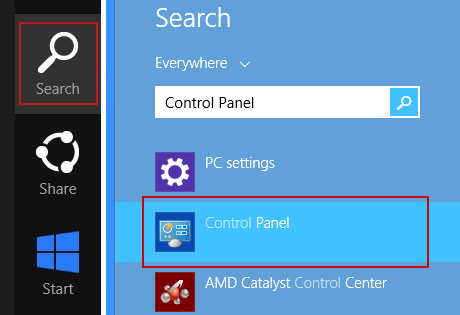
If you are using Windows 8 or 10, simply drag your mouse pointer to the right edge of the screen, select Search from the list and search for "control panel".
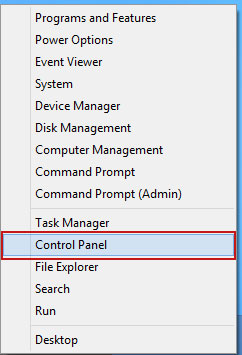
Or you can right-click on a bottom left hot corner (formerly known as the Start button) and select Control panel from there.
3. When the Add/Remove Programs or the Uninstall a Program screen is displayed, scroll through the list of currently installed programs and remove the following:
- Magical Find
- GoSave
- Extag
- SaveNewaAppz
- and any other recently installed application
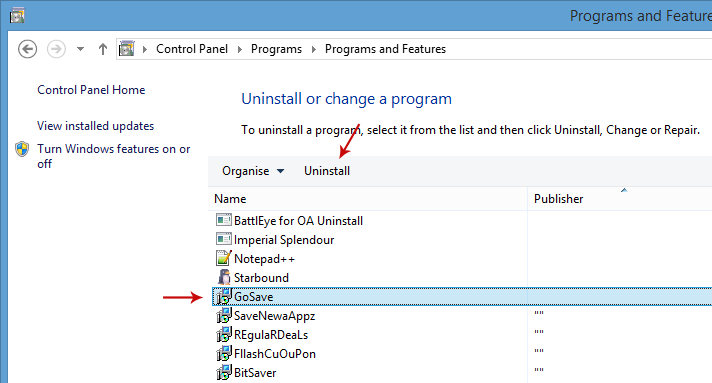
Simply select each application and click Remove. If you are using Windows Vista, Windows 7 or Windows 8, click Uninstall up near the top of that window. When youre done, please close the Control Panel screen.
Remove Tech support pop-up ads related extensions from Google Chrome:
1. Click on Chrome menu button. Go to More Tools ? Extensions.

2. Click on the trashcan icon to remove Magical Find, Extag, Gosave, HD-Plus 3.5 and other extensions that you do not recognize.
If the removal option is grayed out then read how to remove extensions installed by enterprise policy.

3. Then select Settings. Scroll down the page and click Show advanced settings.

4. Find the Reset browser settings section and click Reset browser settings button.

5. In the dialog that appears, click Reset. Thats it!
Remove Tech support pop-up ads related extensions from Mozilla Firefox:
1. Open Mozilla Firefox. Go to Tools Menu ? Add-ons.

2. Select Extensions. Click Remove button to remove Magical Find, Extag, Gosave, MediaPlayerV1, HD-Plus 3.5 and other extensions that you do not recognize.
Remove Tech support pop-up ads related add-ons from Internet Explorer:
1. Open Internet Explorer. Go to Tools ? Manage Add-ons. If you have the latest version, simply click on the Settings button.

2. Select Toolbars and Extensions. Click Remove/Disable button to remove the browser add-ons listed above.
Available link for download
Thursday, December 8, 2016
Windows 8 Mega Guide! 50 Insider Tips
Windows 8 Mega Guide! 50 Insider Tips
Introduction
Windows 8 is officially here, and, more so than any version in recent times, it really is the Windows world reinvented. Its clear from your very first click.
Maybe you?ve just started running Windows 8 on a spanking-new PC and have been poking around inside it; maybe you just updated your existing laptop or desktop. If so, youve probably worked your way through Windows few basic tutorials, and you know the rudiments of 8s new normal, such as how to mouse/swipe around the all-new Start screen or expose the essential Charms bar. But there?s more?far, far more!?to the new OS beneath the surface thats unlike any Windows youve used before.

Theres a big learning curve, too. To be sure, whatever you think of it, Windows 8 is undeniably?different. It poses challenges for those of us used to the relative comforts of Windows 7 and XP. The familiar Windows desktop is still around, and it works much the same as it always did (minus, as been mourned for months, the old-style Start menu). But the new Start screen and tiled interface present wholly new ways of organizing and launching your applications and files?as well as a whole new way to think about Windows. Our take? Windows 8 should really be called "Windows 4+4," because it bridges?and forces you to contend with?two very different worlds: the familiar Windows desktop world, and a new Windows apps world.
Managing and customizing Windows is a different ballgame in 8, as well. Many of the new commands and features in Windows 8 are hidden or difficult to find, so it?s easy to get lost trying to figure out where and how to perform specific tasks. The actual input devices you use with Windows 8 matter, too, much more so than with any previous Windows switchover. Tablet users can swipe their way around the Start screen and Windows 8 apps with their touch-sensitive displays, but PC users face challenges unprecedented in a new Windows version. Unless you?ve bought a new Windows 8 PC equipped with a touch screen, you?ll have to rely on a trusty mouse and keyboard. And that?s not always easy in Windows 8, given that Microsoft specifically designed it to take advantage of touch-screen tablets, laptops, all-in-one PCs, and hybrid devices.

Don?t worry, though. We?ve compiled 50 key power-user tips guaranteed to ease your way around Windows 8 on your desktop or laptop. The tips are organized into seven sections, accessible from the table of contents above. We?ve assumed you?ve mastered the most basic Windows 8 actions, such as swiping in from the right side of your screen (or mousing to the top-right corner) to access the Charms bar (the vertical strip of icons thats a gateway to loads of crucial functions), or swiping in from the left side of the screen to switch between open applications.
Because Windows 8 is such a significant interface change, it serves up more than its share of quirks and mysteries to new and experienced Windows users alike. But with a little bit of time and patience?and the tips on the following pages?youll start to feel far more at home in Microsoft?s latest operating system. You just need to get experimenting, swiping, and clicking?let us be your guide.
Available link for download
Tuesday, October 25, 2016
vvv Extension how recover Ransomware Removal Guide
vvv Extension how recover Ransomware Removal Guide
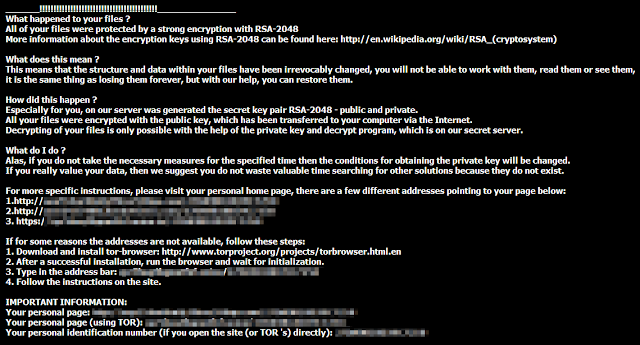
If all of a sudden, most of your files have become unreadable and they all end with a .vvv extension then your computer is infected with a new variant of TeslaCrypt ransomware. Some anti-virus engines detect it as TR/Crypt.ZPACK. This ransom virus leaves multiple files called how_recover+*.txt and how_recover+*.html on your computer with information on how to decrypt your files. There cant be many of us who dont know about the plethora of malicious software, phishing scams, data breaches and other threats that are increasingly sophisticated ? and increasingly unpleasant ? as they do their level best to defraud, con, threaten, frighten and rob us. Unfortunately for the likes of us, the only real way to safeguard our data, bank accounts, and sanity, is to stay one step ahead of the latest dangers. And that means knowing what we are dealing with. To that end, in this post we are going to take a look at a type of malware that is often overlooked, despite the fact that thanks to its thoroughly spiteful nature, it really does deserve a little more time in the spotlight. Welcome to your TeslaCrypt 101.

What is TeslaCrypt ransomware?
One reason why ransomware seems to be relatively unknown when compared to malware such as Trojan Horses or spyware is that it goes under a few different aliases. Alternatively called cryptoware, a cryptovirus, cryptoworm or cryptotrojan, if youve stumbled across any of these names before, then you are also reading about ransomware.
Call it what you like, TeslaCrypt ransomware is an extremely dangerous, and worrying, program and something you definitely want to take pains to avoid. If youre wondering just what it is that this malware can do, the names given to the various strains might give you a clue: ransom, crypto... Yes, it is a program that has been designed to infiltrate your computer, kidnap your data by encrypting it, and then demand a ransom for its release (usually $300 or more). The theory is that once you have paid the ransom, you will be sent a code which will allow you to decrypt your files. This particular variant encrypts your files and changes file extensions to .vvv, for example review.docx.vvv. Such encrypted Word documents cannot be opened by any program. You will simply get an error message. What is more, it manages to encrypt files on Dropbox folders. Luckily, Dropbox offers free versioning on all of its accounts which means that you will be able to restore your files from previous versions. Unfortunately, you cant do the same with files stored on your hard drive. This ransomware attempts to delete all previous versions of encrypted files.
Ways that TeslaCrypt is spread
Unfortunately, it is spread in a couple of different ways, so there are a number of things you need to watch out for if you are to avoid becoming prey. If you have visited a website that has been compromised by ransomware you will be infected, or if you open an email attachment or click a link in an instant chat app message that contains the malware, you will also kick start the ransomware process.
What happens during a ransomware attack?
As I said earlier, the way that TeslaCrypt works is to hijack your files and then demand that you pay in order that they are released. However, it is not quite as clear cut as all that and please dont think that by capitulating to the kidnappers demands you will get your data back. Do not lose sight of the fact that we are talking about cyber crime here ? the likelihood of the mastermind behind the program actually caring enough to supply you with the code to decrypt your files once you have paid is... well, not really very likely.
Therefore, if you do receive an email or on screen message telling you your files are being held hostage, dont pay a penny unless you absolutely must and have not other choice.
Should I pay the ransom?
There is NO guarantee that the party responsible will release your files so follow the steps in the removal guide below to remove this ransomware from your computer and hopefully, decrypt your files.
How to get my files back?
If you have a recent backup, wipe your hard disk and reinstall your files. If you dont, try Shadow Explorer and Recuva programs or search your computer for previous versions of files. If you are lucky enough you may find files that were not encrypted and renamed to .vvv. But before restoring your files, please remove the ransomware and related malware files from your computer. To do so, please follow the steps in the removal guide below. If you have any questions, please leave a comment down below. Good luck and be safe online!
Written by Michael Kaur, http://deletemalware.blogspot.com
Step 1: Removing TeslaCrypt (.vvv extension) ransomware and related malware:
Before restoring your files from shadow copies, make sure the TeslaCrypt is not running. You have to remove this malware permanently. Thankfully, there are a couple of anti-malware programs that will effectively detect and remove this malware from your computer.
1. First of all, download and install recommended anti-malware scanner. Run a full system scan and remove detected malware.

Important! If you cant download or run it, please restart your computer in Safe Mode with Networking or Safe Mode and try again. If you dont know how to do that, please watch this video.
2. Then, download ESET Online Scanner and run a second scan to make sure there are no other malware running on your computer.
Thats it! Your computer should be clean now and you can safely restore your files. Proceed to Step 2.
Step 2: Restoring files encrypted by TeslaCrypt (.vvv extension) virus:
Method 1: The first and best method is to restore your files from a recent backup. If you have been regularly performing backups, then you should use your backups to restore your files.
Method 2: Try to restore previous versions of files using Windows folder tools. To learn more, please read Previous versions of files.
Method 3: Using the Shadow Volume Copies:
1. Download and install Shadow Explorer. Note, this tool is available with Windows XP Service Pack 2, Windows Vista, Windows 7, and Windows 8.
2. Open Shadow Explorer. From the drop down list you can select from one of the available point-in-time Shadow Copies. Select drive and the latest date that you wish to restore from.
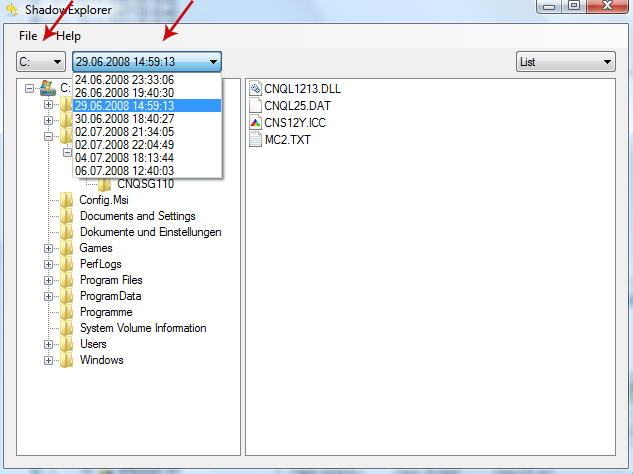
3. Righ-click any encrypted file or entire folder and Export it. You will then be prompted as to where you would like to restore the contents of the folder to.
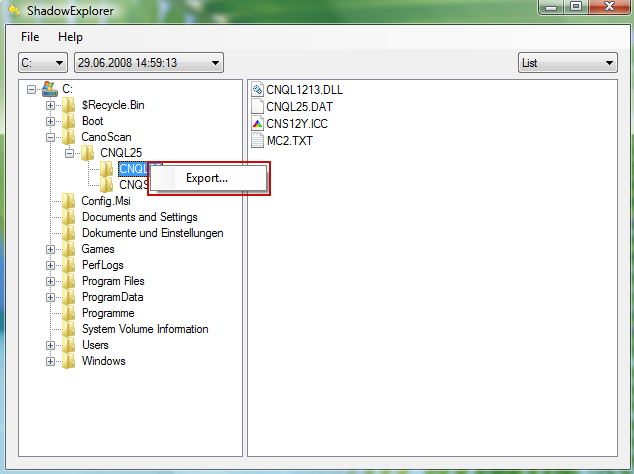
Hopefully, this will help you to restore all encrypted files or at least some of them.
Available link for download
Subscribe to:
Posts (Atom)