Tuesday, April 18, 2017
Stop pop up ads and adware in Edge Browser
Stop pop up ads and adware in Edge Browser
How stop annoying adverts from taking over the new Microsoft Edge browser? I get this question a lot, especially when most users decided to upgrade to Windows 10. It becomes even more frustrating when people realize that they cant use ad blockers because Microsoft Edge doesnt support add-ons and extensions. As you may know, most pop-up ads are caused by adware. Thats why you might need to remove adware first before blaming Edge browser for not doing enough to protect you from intrusive adverts. Adware, or Advertising Supported Software to give it its full name is something which you should be aware of even if you use Microsoft Edge. This is the name given to software programs that have been designed to display, or download, pop-up adverts onto your computer screen. Of course, advertising is a form of marketing ? we all know that ? and of course the reason for adwares existence is to generate a source of income for its programmer or owner. And while this is good news for programmers, advertisers and brands that use adware, where does that leave the likes of you and me? Can adware actually do us harm like so many of the other types of malicious software that are out there?
The way that adware works
Adware works in one of two ways and the adverts themselves will either appear as a pop-up window or they will be embedded in the Edges interface. Adverts can be fairly discreet and sit neatly at the edges of a page of a website, or they can be in your face, thoroughly garish pop-up windows.
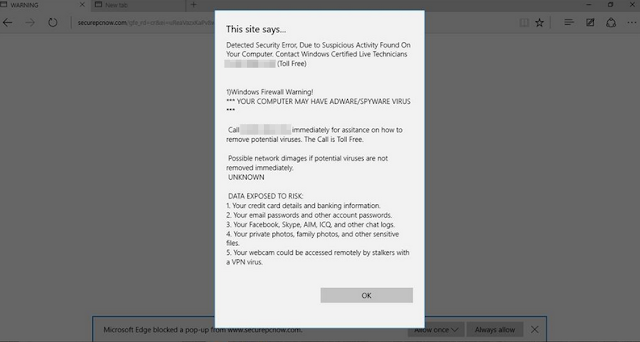
Theres probably no one who will argue that pop-up windows arent the bane of a computer users life ? they can be annoying to the point of distraction! But is adware something other than just a nuisance and could it actually be doing you any damage?
The issues with adware
Many people take umbrage with adware thanks to the way that it monitors which websites you are looking at. You see, at the point of installation, adware will also install a component which enables the programmer to track which websites you visit and see which pages or products you look at upon those pages. They are then able to customize the type of adverts they show you based on what they perceive to be your tastes, needs or interests.
It goes without saying that targeted adverts have a higher chance of tempting you to click on them to discover more, rather than adverts for completely random goods that you have no interest in whatsoever.
Who makes adware and why?
Well aside from the obvious reason why anyone creates any form of advertising, adware is also used by the software developers who make it to attempt to recover the costs they incurred when they developed another app or program. You will download their latest must have app or even a program that enables you to work smarter but unbeknown to you, the adware will be bundled with that program.
Is adware dangerous?
There are two sides to this ongoing argument. Many people dont worry too much about the existence of adware as they see it as a necessary evil if they want to be able to download free apps, files or programs. Other people however find the fact that it tracks your usage extremely intrusive and will argue that because the adware was packaged surreptitiously with another program to spy on you this makes it potentially dangerous.
How do I stop pop-up adverts in Microsoft Edge?
First of all, scan your computer with anti-malware software, especially if you are still not familiar with Windows 10. Adwares programmers are smart and try to hide malicious files on your computer making it difficult to find and remove each malicious file. To remove adware from your computer and stop the absolutely annoying ads, please follow the steps in the removal guide below. If you have any questions, please leave a comment down below. Good luck and be safe online!
Written by Michael Kaur, http://deletemalware.blogspot.com
Stop pop-up ads and adware in Edge Browser:
1. End Edge browser task in Task Manager.
2. Disconnect your computer from the Internet.
3. Start Edge browser and just before the offending pop-up appears, press Ctrl+T (several times if necessary). This will allow you to get into Edge settings and clear cookies, etc. Next time you start all should be well. If you are still getting the annoying ads, do the following:
a. Close Edge browser again.
b. Navigate to
C:Users[your-user-name]AppDataLocalPackagesMicrosoft.MicrosoftEdge_xxxxxxACMicrosoftEdgeUserDefaultRecoveryActive
c. Delete everything on that directory and open Edge browser.
4. Download anti-malware software and run a full system scan. It will detect and remove adware from your computer. You may then follow the manual removal instructions below to remove the leftover traces of this adware. Hopefully you wont have to do that.

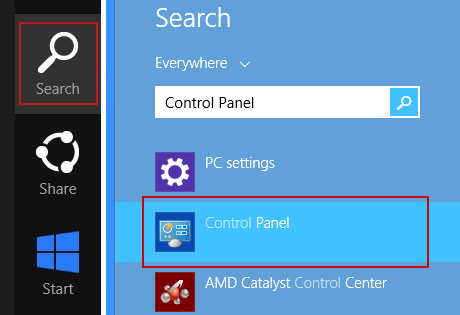
5. Remove adware related programs from your computer using the Uninstall a program control panel. Simply drag your mouse pointer to the right edge of the screen, select Search from the list and search for "control panel".
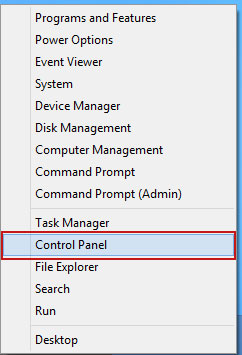
Or you can right-click on a bottom left hot corner (formerly known as the Start button) and select Control panel from there.
6. When the the Uninstall a Program screen is displayed, scroll through the list of currently installed programs and remove the following:
- PlayGEM
- GoSave
- Extag
- SaveNewaAppz
- and any other recently installed application
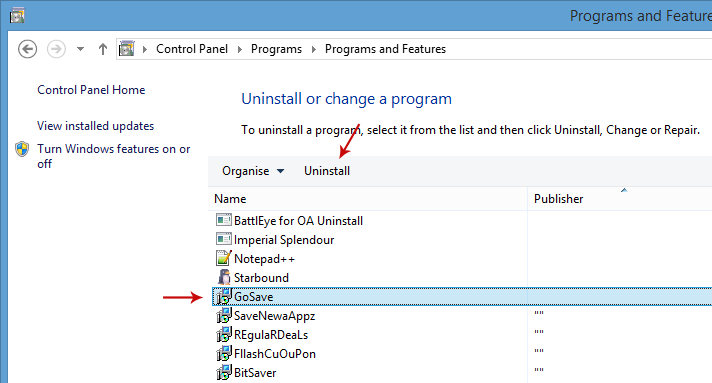
Simply select a suspicious application and click Uninstall up near the top of that window. When youre done, please close the Control Panel screen.
Available link for download

Thursday, February 9, 2017
uTorrentPatch v1 0 Speed UP DL speed Direct Link
uTorrentPatch v1 0 Speed UP DL speed Direct Link

uTorrentPatch v1.0 - Speed UP DL speed [Direct Link] | 72 KB
boxvn
- Please help me click "Skip Ad" any pages of download link. It will help me get some money for my life !
- Sorry about "so many step to download" ( Im not good English )
- Thanks for watching !
Available link for download
Tuesday, December 20, 2016
Tech Support Pop up Virus Removal Guide
Tech Support Pop up Virus Removal Guide
I am sure you know as well as I do that these days, using the internet is quite a dangerous activity! And you dont even have to be using the Dark Web to fall foul of the myriad of software programs that have been designed to do us harm. Being infected by malware can be a distressing experience ? and it can cost you dearly in time and money, and even your identity.
There are programs that will hijack your browsers, display scam tech support pop ups and fake BSOD screens, those that trick you into handing over money for fix of your supposedly detected computer errors or malware infections, others that steal your passwords and hack your email, social media and even bank accounts. And because the majority of these malicious programs are bundled with free software, files or apps, we are all at risk of contracting an infection every single time we download something.
A fake message from securepcnow.com claiming that your data is at risk because of detected security errors:

Another fake pop-up message from errorscript.co trying to convince you that your computer is infected with malware. It even tries to mimic Microsoft Security Essentials detection window to make it look more reliable:

And finally, the most popular scam pop-up these days - fake BSOD claiming that your system security is at risk:

Even computer or tech support pop ups, which are often seen as less of a menace than some of the other types of software, can cause you harm and seriously disrupt the way you use your computer. Such pop-ups are usually displayed by adware installed on your computer. So, if you are getting fake tech support pop-ups then you should scan your computer for adware and other malware. But is adware the same as spyware? After all they are both often discussed in the same breath so you could be forgiven for thinking that they are one and the same. Lets take a look at the similarities between the two.
What do adware and spyware have to do with each other?
Adware has one defining trait that is very much its own: its ability to show you an endless stream of annoying and fake tech support pop-up windows and banner adverts. Spyware does not do this but it does have an even more sinister trick up its sleeve ? read on to find out what.
The reason that adware and spyware are often lumbered together in articles about malware is that adware does have some spy-like characteristics. When adware is installing itself on your PC it also installs a tracing component that monitors your internet usage and tracks and records which websites you visit. It then sends this data back to the adware?s programmer who can then show you adverts that are closely related to the goods or services that you have been looking at online.
Spyware on the other hand will not only survey which websites you visit ? it takes its creepy and intrusive antics one step ? a big step ? further. Spyware often installs something called a keylogger on your machine and this will monitor which keys you type. This data is collected and then sent to the programmer or owner of the spyware so that they can discover ? and of course then use - your passwords, login details, online bank account details, credit card numbers and anything else they care to discover about you.
Protecting yourself from adware and fake tech support pop-ups
After reading the above you probably want to learn how to protect yourself. Well, much as we all love to download the plethora of free apps and software that are available out there, to protect yourself you need to download with care. And that means reading Ts & Cs carefully when youre downloading to ensure youre not also installing any nasty add-ons. If your computer has been infected by adware which displays tech support scam pop-ups saying that you need to call certain phone number for assistance - DONT and instead please follow the steps in the removal guide below. If you call the number you will probably lose at least $100 and compromise your computer security. If you have questions, please leave a comment down below. Good luck and be safe online!
Written by Michael Kaur, http://deletemalware.blogspot.com
Tech Support Pop-up Virus Removal Guide:
1. First of all, download anti-malware software and run a full system scan. It will detect and remove this infection from your computer. You may then follow the manual removal instructions below to remove the leftover traces of this malware. Hopefully you wont have to do that.

2. Remove adware related programs from your computer using the Uninstall a program control panel (Windows 7). Go to the Start Menu. Select Control Panel ? Uninstall a Program.
If you are using Windows 8 or 10, simply drag your mouse pointer to the right edge of the screen, select Search from the list and search for "control panel".
Or you can right-click on a bottom left hot corner (formerly known as the Start button) and select Control panel from there.
3. When the Add/Remove Programs or the Uninstall a Program screen is displayed, scroll through the list of currently installed programs and remove the following:
- Magical Find
- GoSave
- Extag
- SaveNewaAppz
- and any other recently installed application
Simply select each application and click Remove. If you are using Windows Vista, Windows 7 or Windows 8, click Uninstall up near the top of that window. When youre done, please close the Control Panel screen.
Remove Tech support pop-up ads related extensions from Google Chrome:
1. Click on Chrome menu button. Go to More Tools ? Extensions.

2. Click on the trashcan icon to remove Magical Find, Extag, Gosave, HD-Plus 3.5 and other extensions that you do not recognize.
If the removal option is grayed out then read how to remove extensions installed by enterprise policy.

3. Then select Settings. Scroll down the page and click Show advanced settings.

4. Find the Reset browser settings section and click Reset browser settings button.

5. In the dialog that appears, click Reset. Thats it!
Remove Tech support pop-up ads related extensions from Mozilla Firefox:
1. Open Mozilla Firefox. Go to Tools Menu ? Add-ons.

2. Select Extensions. Click Remove button to remove Magical Find, Extag, Gosave, MediaPlayerV1, HD-Plus 3.5 and other extensions that you do not recognize.
Remove Tech support pop-up ads related add-ons from Internet Explorer:
1. Open Internet Explorer. Go to Tools ? Manage Add-ons. If you have the latest version, simply click on the Settings button.

2. Select Toolbars and Extensions. Click Remove/Disable button to remove the browser add-ons listed above.
Available link for download
Saturday, December 10, 2016
Troubleshooting Back up not finished message is Timed Out error 0x81000101 Error
Troubleshooting Back up not finished message is Timed Out error 0x81000101 Error
Back up not finished. message is "Timed Out" error 0x81000101
Back up does not complete on external drive.
Message received is "Back Up Timed Out".
What does this mean and how do I enable the back up to complete a copy of the C drive information in full.
Error message is 0x81000101
Anwsers to the Problem Back up not finished. message is "Timed Out" error 0x81000101
Download SmartPCFixer for Free Now
Hi,
ÿ
ÿ
ÿ
Thank you for posting in the Microsoft Community Forum.
From your description I understand that you are unable to perform Backup and you are receiving error message as
0x81000101.
ÿ
ÿ
ÿ
To understand the issue better, please answer the following questions:
ÿ
ÿ
ÿ
ÿ
1.ÿÿÿ Are you connected to a domain network?
2.ÿÿÿ ÿAre you using Windows backup feature to perform the backup?
3.ÿÿÿ ÿWhat is the size of the data you are trying to add or backup?
4.ÿÿÿ Have you made any changes on the computer prior to this issue?
5.ÿÿÿÿÿÿ Did you install third party backup utility?
6.ÿÿÿÿÿÿ What type of back up are you running?
ÿ
ÿ
Get back with more information to assist you better.
Follow the mentioned methods:
ÿ
ÿ
Method 1: Verify if these two services are running:
A.
Volume Shadow Copy service
B.
Windows backup
Also ensure that their dependency services are running.
You can check this information from services.msc.
Follow the steps below to check the services.
a) Go to start and type services.msc in the search field.
b) Locate the two services.
c) Right-Click on the service one at a time.
d) Select properties.
e) Go to Startup type.
f) Select Automatic
ÿ
Method 2:
ÿ
ÿ
Run check disk to find and fix errors on the drive.
a) Click Start, type cmd, right click on cmd and click run as administrator.
b) On the prompt, type chkdsk /f /r and hit enter.
c) Try to backup and check the result.
ÿ
For more information on "Check a drive for errors" check this link:
http://windows.microsoft.com/en-US/windows7/Check-a-drive-for-errors
ÿ
Note: For safety, try backing up the data manually before doing a check disk.
While performing chkdsk on the hard drive if any bad sectors are found on the hard drive when chkdsk tries to repair that sector if any data available
on that might be lost
ÿ
Method 3:
ÿ
Step 1:
ÿ
You may also temporarily disable security software and check if the issue persists.
Make sure to enable that security software on the computer after checking.
ÿ
http://windows.microsoft.com/en-us/windows7/Turn-Windows-Firewall-on-or-offÿ
http://windows.microsoft.com/en-US/windows7/Disable-antivirus-software
ÿ
If disabling the security software resolves the issue then, please contact the specific security software manufacturer to resolve the issue.
ÿ
Important Note: Antivirus software can help protect your computer against viruses and other security threats.
In most cases, you shouldnt disable your antivirus software.
If you have to temporarily disable it to install other software,
you should re-enable it as soon as youre done.
If youre connected to the Internet or a network while your antivirus software is disabled, your computer is vulnerable to attacks.
ÿ
ÿ
Step 2:
ÿ
Also try to set your computer in Clean Boot state and check if the same issue occurs.
By setting your system in clean boot state helps in identifying if any third party applications or startup items are causing the issue.
How to troubleshoot a problem by performing a clean boot in Windows Vista or in Windows 7:
http://support.microsoft.com/kb/929135
Note: After clean boot troubleshooting step, followStep 7 in the provided link to return your computer to Normal startup mode.
ÿ
ÿ
For more information on "Backing up your files" check this link:
http://windows.microsoft.com/en-US/windows7/Back-up-your-files
ÿ
Hope the above information is helpful.
If you have any question get back to us, we are happy to help you.
Thanks.
- Open Internet Explorer.
- Go to "Tools > Internet Options > Advanced Tab".
- Uncheck "Enable third-party browser extensions".
- Click "Apply".
- Reboot your computer.
Recommended Method to Fix the Problem: Back up not finished. message is "Timed Out" error 0x81000101:


How to Fix Back up not finished. message is "Timed Out" error 0x81000101 with SmartPCFixer?
1. Click the button to download Error Fixer . Install it on your system. Open it, and it will perform a scan for your system. The errors will be shown in the list.

2. After the scan is done, you can see the errors and problems which need to be repaired.

3. When the Fixing part is finished, your computer has been speeded up and the errors have been fixed

Related: AMD Radeon HD 7800M Win8 not working [Anwsered],I can access the internet, get on facebook and get to hotmail, but I cant play games on facebook and I cant open or respond to my e-mails,I keep getting this Media Player error when I log on my computer. [Anwsered],[Anwsered] System Hanging on shutdown and restart,Unable to get the Vlookup property of the WorksheetFunction class,Solution to Error: Error: "0x81000032 make sure the C: drive is online and set to NTFS" when trying to backup to external hard drive.
,Troubleshoot:External Hard Drive not listed in Windows 7 backup wizard Error
,Im always being signed off so annoying Tech Support
,Solution to Problem: Impossible to use Internet Explorer! I keep getting the same error message every time i try to use IE.
,Solution to Problem: Referencing data in another file
,Troubleshoot:Error: "0x81000032 make sure the C: drive is online and set to NTFS" when trying to backup to external hard drive. Error,External Hard Drive not listed in Windows 7 backup wizard Tech Support,Tech Support: Im always being signed off so annoying,Solution to Problem: Impossible to use Internet Explorer! I keep getting the same error message every time i try to use IE.,Referencing data in Access using Excel [Anwsered],Need Best Way To Present Data [Anwsered],Same question but for windows 7 home edition,sometimes fullscreen wont activate [Solved],Solution to Error: We bought a new computer with windows 7 and it is constantly freezing. How do we fix this?,Solution to Error: Windows 8 update crash (2013-07-22)
Read More: Tech Support: back up files converted to PBD,[Anwsered] Are there any plans to include Firewire support with XP Mode and Windows 7?,Fast Solution to Error: Azure Tools 1.2 for Visual Studio stability hotfix from connect.microsoft.com,Automate drawing a circle around cell [Anwsered],Troubleshoot:AutoComplete entries not displayed for Username field although values are present in registry.,application not found error,any problems in a team where one has Windows XP and the other has Windows 7?,Application/Object-Defined Error,An Excel formula question where hours are totalled and cumulating,Anyone know the hardware email?
Available link for download
Saturday, November 26, 2016
Tips iOS how to prevent iphone from heating up
Tips iOS how to prevent iphone from heating up
Each new version of the platform that was released could certainly still have bugs and imperfections here and there, it should be recognized. Looking at the history of releases earlier iOS versions, has always given a minor upgrade to remove various bugs so you can predict Apple will give you a similar minor update iOS 7 after the final version was released.
Problems on WiFi, wasteful batteries, bugs in the App Store as well as the latest and easy Passbook lockscreen cracked, never went to iOS 6. You certainly do not expect similar problems will arise in iOS 7 but from the reports of the developers who have been using iOS beta 7, their iPhone quickly overheating.
Heat source coming from the components inside the iPhone is not going to cause any permanent damage but it certainly would feel uncomfortable if you hold the iPhone in hot conditions.
To overcome the problem of overheating in the iPhone, you can unlock iOS setting 7 to make some changes: Privacy> Location Services> System Services.
From there you please change some of the options below to the OFF position:
- Diagnostics & Usage (function for reporting errors and problems to Apple).
- Location-based iAds (display ads based on your location).
- Cool Near Me (featuring popular events from friends on Facebook and Twitter via the notification).
- Wi-Fi Networking (look for the location where you are located via Wi-Fi hotspots when you are outside the reach of services).

In addition to the above options, you also need to know that GPS is a source of heat faster iPhone. For that you need to turn off all GPS-based services if you do not really need it. Applications such as Camera, Passbook, Safari, Shazam and Twitter always detect your position via GPS, for that you can change all the apps to the OFF position when not required.

To see if the location services are used or not, you can change the status bar icon to the ON position, located at the bottom of the System Setvices. In this way the purple location services icon will appear in the status bar at the top of the screen.

Another way to prevent overheating iPhone:
1. Replace car adapter.
2. Remove and set up your iPhone as a new device (no restore).
3. Do not attach the case when charging.
4. Charge your iPhone before traveling to the hot temperature
5. Turn off all unused services (Bluetooth, push notifications, etc..).
6. Position the screen brightness as low as possible
7. Turn off the turn-by-turn directions.
Tips to prevent overheating in the general can be used in all versions of iOS, including iOS 7. Good luck and hopefully you can avoid the iPhone overheating
Available link for download
Tuesday, October 11, 2016
Stop pop up ads and adware in Steam
Stop pop up ads and adware in Steam
Certain adware variants can affect programs like Steam and display pop-up ads. In my case it was DNS Unlocker adware. Yours might be different but in general, if you want to stop pop-up ads in Steam client you need to remove adware from your computer. As you may already know, advertising supported software, or adware as it is more commonly referred to as, is the name for any computer software program that has been designed to show you ads and pop-ups when you are online and browsing the internet. Usually, adware affects web browsers but Steam client and similar programs can be affected as well. The whole reason for adwares existence is to generate revenue. The adware might be a source of income for the programmer but what does it mean for the likes of you and me?
In its most innocent incarnation adware is generally easy to ignore. In its worst incarnations, however, it is a different story entirely! If you are unlucky enough to be infected by the worst kind, you will soon be tearing you hair out in frustration.

The way in which adware works
Adware has two different ways of working. The first is to show you a screen when the program ? or should we say malware ? is installing itself, and the second is that it is actually buried in the softwares user interface. If you are seeing pop up ads on your computer and in your Steam client you have been hit by the worst type of adware. If you are seeing adverts that are displaying products that are the same as, or very similar to, things you have been looking at online recently, then you are seeing the regular type of adware.
Wait! How does adware know what I have been looking at online recently?
Adware of this nature ? i.e. the type that we all see every day - has one defining trait and that is the ability to monitor which websites you visit. This means that the programmer can decide which adverts they show you so that they have a better chance of you clicking through and spending some of your hard earned cash! How does it do that? Because when the adware is installed on your PC it also installs a tracking component that follows everything you do on the internet. Are you thinking what I am thinking? Thats kind of an invasion of your privacy, no? It sure is but what makes it even worse that adware like DNS Unlocker can be grab info from Steam and other programs. So, dont be surprised to see third-party game advertisements on your Steam client. Of course, sometimes adware will probably display completely unrelated ads as shown in the image above. Real estate ads on Steam? Seriously? Well, scammers dont discriminate. If someone paid for such ads they will certainly display them no matter what program you use, even if its Steam.
So does this mean that adware is a type of malware?
Adware is often talked about at the same time as other types of malware but this is actually somewhat of a grey area. Some people see adware as something that can be annoying, but livable with, while other people are strongly against its very existence thanks to its scant disregard for your privacy. And of course, the people that program adware will tell you that there is absolutely nothing wrong with it at all!
I think I want to protect myself against adware ? what do I do?
The best thing you can do to prevent adware from becoming a blight upon your online life is to install a decent anti-malware program on your computer.
How to stop ads and adware in Steam?
As I said, you need to identify and remove adware from your computer. You can do this manually or run a full system scan with anti-malware software. Either way, please follow the steps in the removal guide below. I use DNS Unlocker as an example but it should be the same with any other adware in case yours is different. If you have any questions, please leave a comment down below. Good luck and be safe online!
Written by Michael Kaur, http://deletemalware.blogspot.com
Steam Adware and Pop-up Ads Removal Guide:
1. First of all, download anti-malware software and run a full system scan. It will detect and remove this infection from your computer. You may then follow the manual removal instructions below to remove the leftover traces of this malware. Hopefully you wont have to do that.

2. Remove DNS Unlocker related programs from your computer using the Uninstall a program control panel (Windows 7). Go to the Start Menu. Select Control Panel ? Uninstall a Program.
If you are using Windows 8 or 10, simply drag your mouse pointer to the right edge of the screen, select Search from the list and search for "control panel".
Or you can right-click on a bottom left hot corner (formerly known as the Start button) and select Control panel from there.
3. When the Add/Remove Programs or the Uninstall a Program screen is displayed, scroll through the list of currently installed programs and remove the following:
- DNS Unlocker
- GoSave
- Extag
- SaveNewaAppz
- and any other recently installed application
Simply select each application and click Remove. If you are using Windows Vista, Windows 7 or Windows 8, click Uninstall up near the top of that window. When youre done, please close the Control Panel screen.
Remove adware related extensions from Google Chrome:
1. Click on Chrome menu button. Go to More Tools ? Extensions.
2. Click on the trashcan icon to remove DNS Unlocker, Extag, Gosave, HD-Plus 3.5 and other extensions that you do not recognize.
If the removal option is grayed out then read how to remove extensions installed by enterprise policy.
3. Then select Settings. Scroll down the page and click Show advanced settings.
4. Find the Reset browser settings section and click Reset browser settings button.
5. In the dialog that appears, click Reset. Thats it!
Remove adware related extensions from Mozilla Firefox:
1. Open Mozilla Firefox. Go to Tools Menu ? Add-ons.
2. Select Extensions. Click Remove button to remove DNS Unlocker, Extag, Gosave, MediaPlayerV1, HD-Plus 3.5 and other extensions that you do not recognize.
Remove adware related add-ons from Internet Explorer:
1. Open Internet Explorer. Go to Tools ? Manage Add-ons. If you have the latest version, simply click on the Settings button.
2. Select Toolbars and Extensions. Click Remove/Disable button to remove the browser add-ons listed above.
Available link for download